Help · Inventory
Spreadsheets
Download a spreadsheet, print a count sheet, bring a spreadsheet in, files for a POS or accounting system, and sales from a POS.
Spreadsheets and count sheets
- Press Export, beside More. Report sits at the top: sold, not sold, received and adjusted, for a period, on screen, as a PDF or as a spreadsheet. See The report.
- Press Print, Ordering or Download to open it; the line at the top, or Esc, goes back to Export.
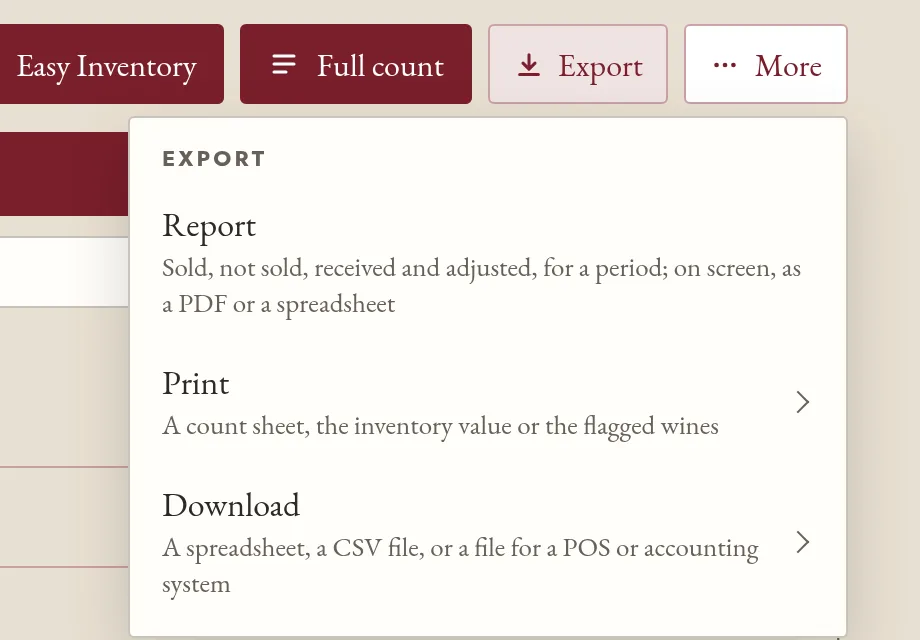
- Press Export, beside More. Report sits at the top: sold, not sold, received and adjusted, for a period, on screen, as a PDF or as a spreadsheet. See The report.
- Press Print, Ordering or Download to open it; the line at the top, or Esc, goes back to Export.
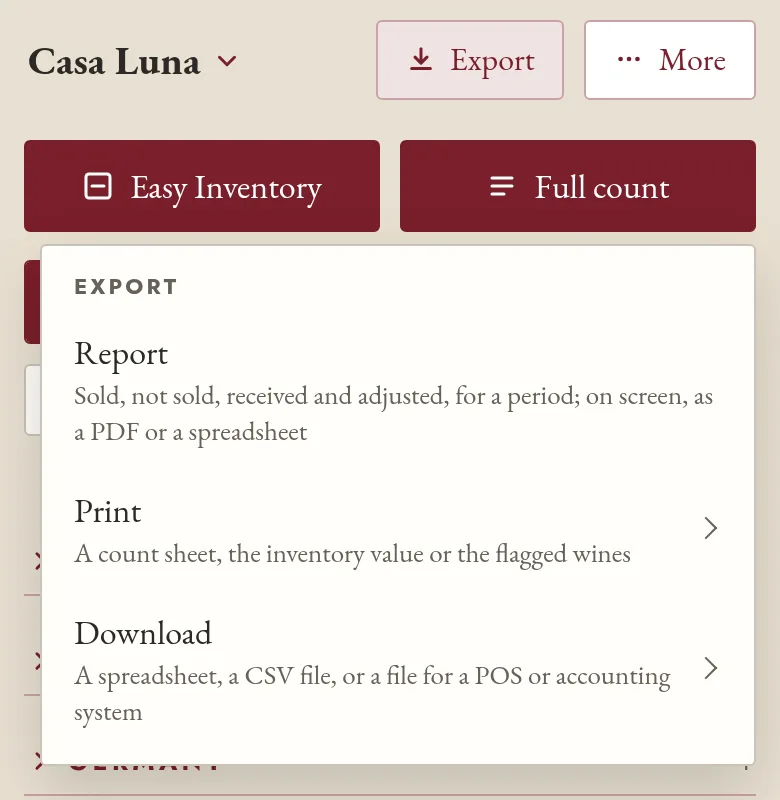
Print holds:
- Print a count sheet: ruled for a pen, with no prices, in the order on screen; with a Bin column once a wine has a bin.
- Print the inventory value: what the bottles on hand are worth, by region, at cost and at list price, with subtotals and a total. See Cost and value.
- Print the flagged wines: every wine flagged in a count or on its page, by bin, with its count and the date, and a line for who checked. Turn a flag off with the Flagged switch on the wine’s page once it is settled. The spreadsheet has a Flagged column with the date.
Download holds:
- Download a spreadsheet: every wine, with its count, when it was last counted, 86, its lists and prices, as an Excel file that Google Sheets, Excel and Numbers all open.
- Or as a CSV file: the same columns, for a program that imports a CSV.
- For a POS or accounting system: fill in a file from Square, Clover or another system, download an item list, or make a month-end journal. See For a POS or accounting system.
In Par mode, Ordering holds Print an order sheet and Mark the order as placed: the wines below their par, by supplier, with what to order. See Par and the order sheet.
Bring in a spreadsheet
- Press More, Import, then Import a spreadsheet, and choose a .csv or .xlsx file; the first sheet of an Excel file is read, and a file exported from TableSet reads straight back.
- TableSet reads the column headings and matches each wine to the Library; a Cost column comes in as each wine’s cost, and a SKU, PLU or Item code column as its item code. Change columns fixes a heading it read wrongly.
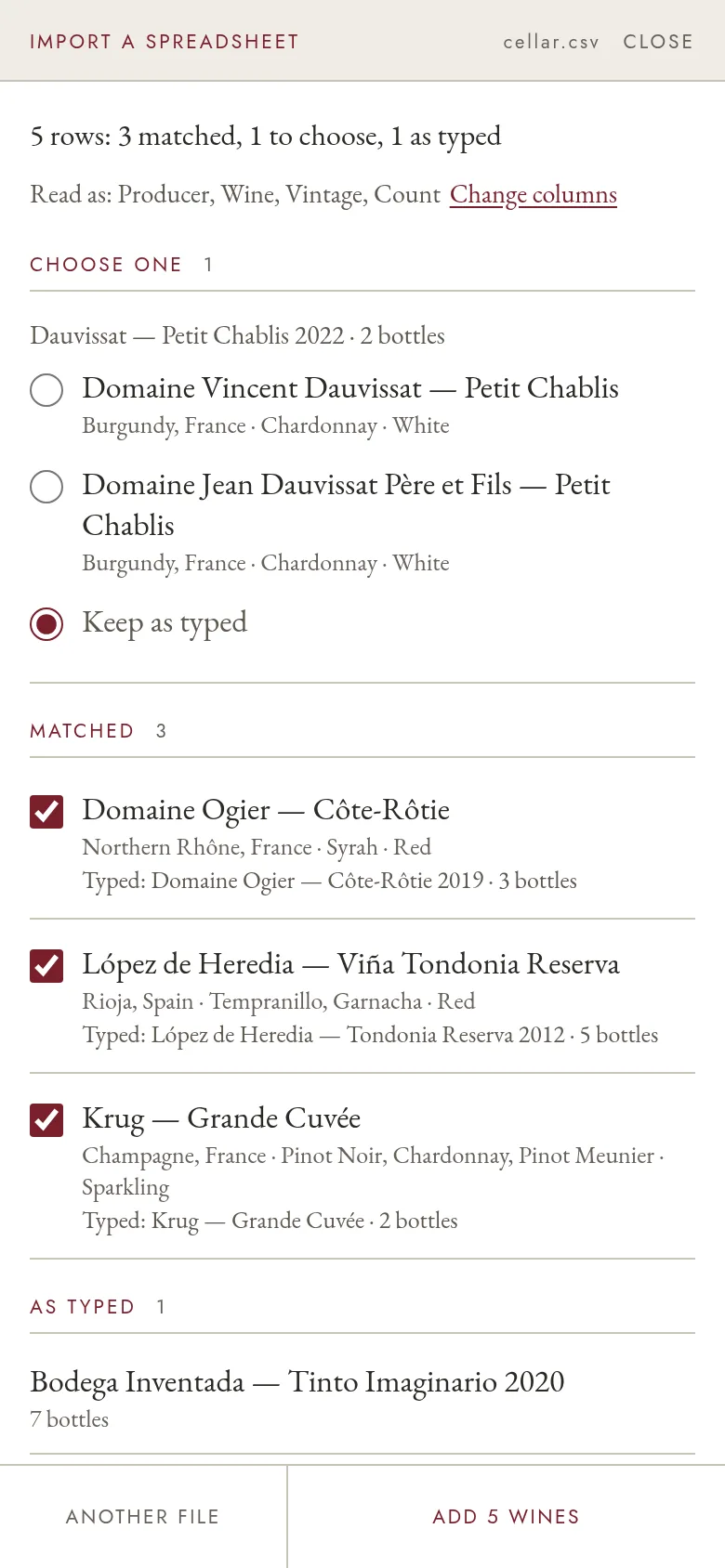
- Choose one: pick the right Library wine, or keep the wine as typed. Matched: untick any that are wrong. As typed: not in the Library, added as written. Wines already in Inventory are left as they are.
- Press Add. Nothing is added before that, and Undo takes the whole import back.
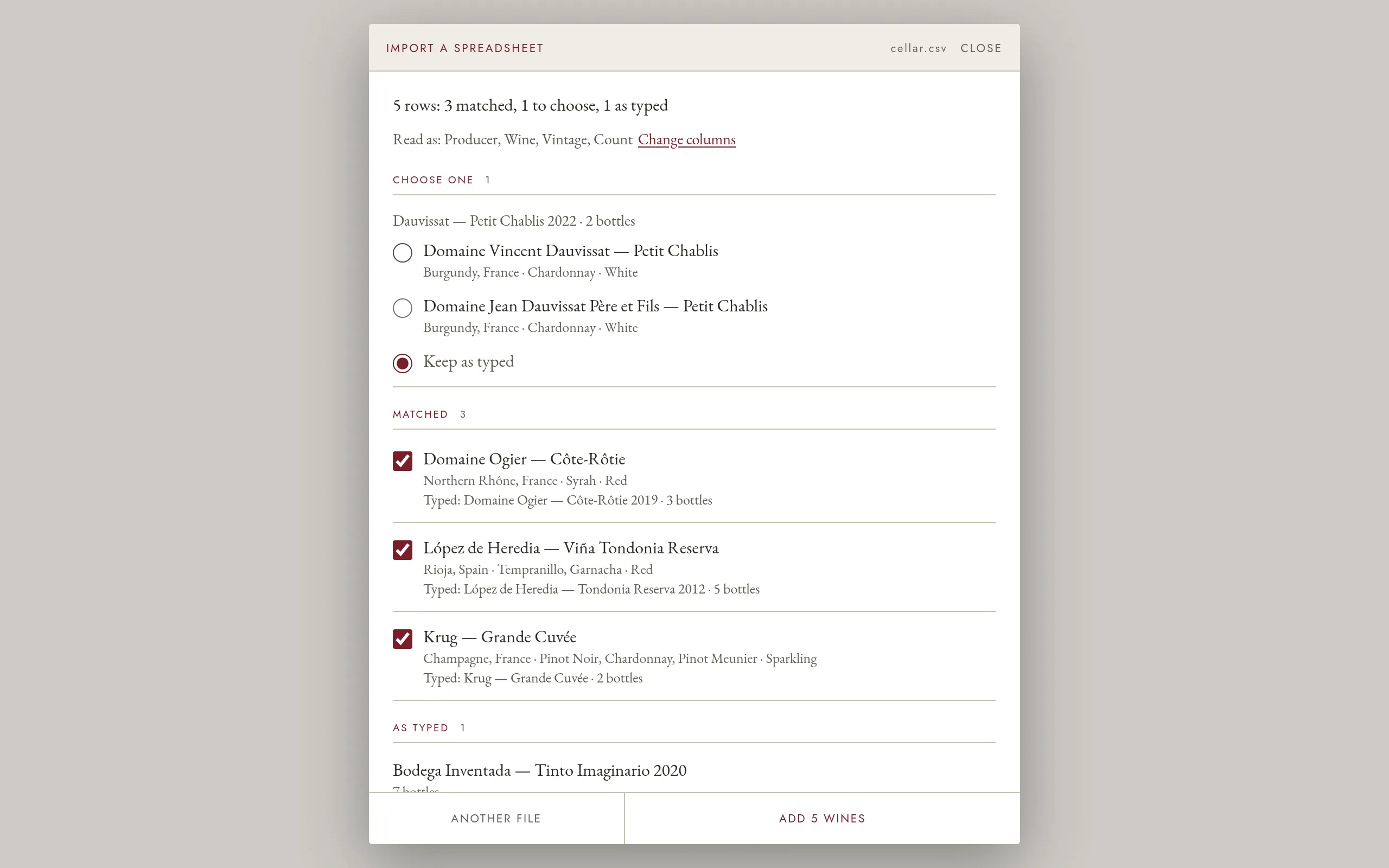
- Press More, Import, then Import a spreadsheet, and choose a .csv or .xlsx file; the first sheet of an Excel file is read, and a file exported from TableSet reads straight back.
- TableSet reads the column headings and matches each wine to the Library; a Cost column comes in as each wine’s cost, and a SKU, PLU or Item code column as its item code. Change columns fixes a heading it read wrongly.
- Choose one: pick the right Library wine, or keep the wine as typed. Matched: untick any that are wrong. As typed: not in the Library, added as written. Wines already in Inventory are left as they are.
- Press Add. Nothing is added before that, and Undo takes the whole import back.
For a POS or accounting system
Files your point of sale or your accounting system can import: Square, Clover, Toast, Lightspeed, Restaurant365, QuickBooks Online, Xero and others. TableSet never connects to them and sends nothing; you upload the file there yourself.
- Item code. Open a wine’s page and, under Details, press Item code. Type the SKU or PLU the other system uses for the wine, and press Save. It is optional and never prints on a list; with it, a file matches the wine exactly. Without it, TableSet matches by name.
- Press Export, Download, then For a POS or accounting system.
- Fill in a file from your system. In the other system, export its item list or count sheet (in Square, the item library; in Restaurant365, the count sheet). Choose that file here, as .xlsx or .csv. TableSet matches each row to a wine, by item code and then by name, and shows the result: Matched, which you can untick, and Not matched, left as they are.
- Under Write into the file, Bottles on hand is ticked; Bottle prices, and for owners and editors Costs, are there when the file has those columns. Change columns fixes a column read wrongly, such as which quantity to fill.
- Press Save the file. Only the chosen cells change; every other cell, column and sheet stays as it was, so the file goes back in the other system’s own import. A wine nobody counted, a cell with a formula, and a row for a glass are left as they were.
- Download an item list, or Or as a CSV file: one sheet with SKU, Name, Producer, Wine, Vintage, Category, Region, Size, Price, Glass price, Cost, Quantity and Supplier, with English headings, for systems that match columns when they import, such as Lightspeed and QuickBooks Online. Cost is filled for owners and editors only.
- Month-end journal, for owners and editors: the change in the wine on hand, at cost, from the first of a month to its last day, as two journal lines. Choose the month: this month so far, or an earlier one the record of changes reaches. The start and end values, the change and the lines are on screen before anything is saved.
- Under For, choose QuickBooks Online (a CSV for Journal entry, Import), Xero (a CSV for Manual journals, Import, which arrives as a draft) or A spreadsheet for your accountant. Under Accounts, type the account names your QuickBooks uses, or the account codes from your Xero chart of accounts. Your accountant chooses the accounts; TableSet keeps what you type with the establishment, on every device.
- This is the usual adjustment when wine bills are entered to a cost-of-goods account: when the wine on hand goes down, the difference moves from inventory into wine cost; when it goes up, the other way. Ticking Broken and corked, Comped or Staff adds a line that moves those bottles, at cost, out of wine cost into an account of their own.
- Press Save the journal, and import the file in QuickBooks Online or Xero, or send the spreadsheet to your accountant. Nothing is posted from TableSet.
Quantities are whole bottles; an open bottle is left out. Each system has its own rules for importing; read its help before uploading, and check a few rows after. A Toast import cannot be undone.
The journal values the start of the month at each wine’s cost on the first day and the end at its cost on the last day; a bottle broken, corked, comped or poured for staff is at the cost on the day it went. TableSet keeps the last twelve costs of each wine with their dates. It leaves out wines with no cost and wines put away. It is a starting point for your books, not accounting advice; check it with your accountant before you post it.
Sales from a POS
Instead of pressing minus for every bottle, bring in what your point of sale sold. TableSet never connects to it; you export a file there and choose it here.
- In your point of sale, export item sales for the days since you last brought them in: in Square, Transactions, Export, Item Detail CSV; in Toast, the ItemSelectionDetails file from the data export, or Product Mix; in Clover, Reports, Item sales, Export; in Lightspeed, Line transactions, or Product Mix. A file with a date on each row is best.
- In Inventory, press More, Import, then Import sales from a POS, and choose the file.
- TableSet matches each item to a wine: first one you matched before, then by item code, then by name and vintage. It tells a glass from a bottle by the size in the file (Glass, Bottle, 6 oz), then by price. An item it cannot place is under Choose a size; press Bottle or Glass, or Other for a carafe or half bottle.
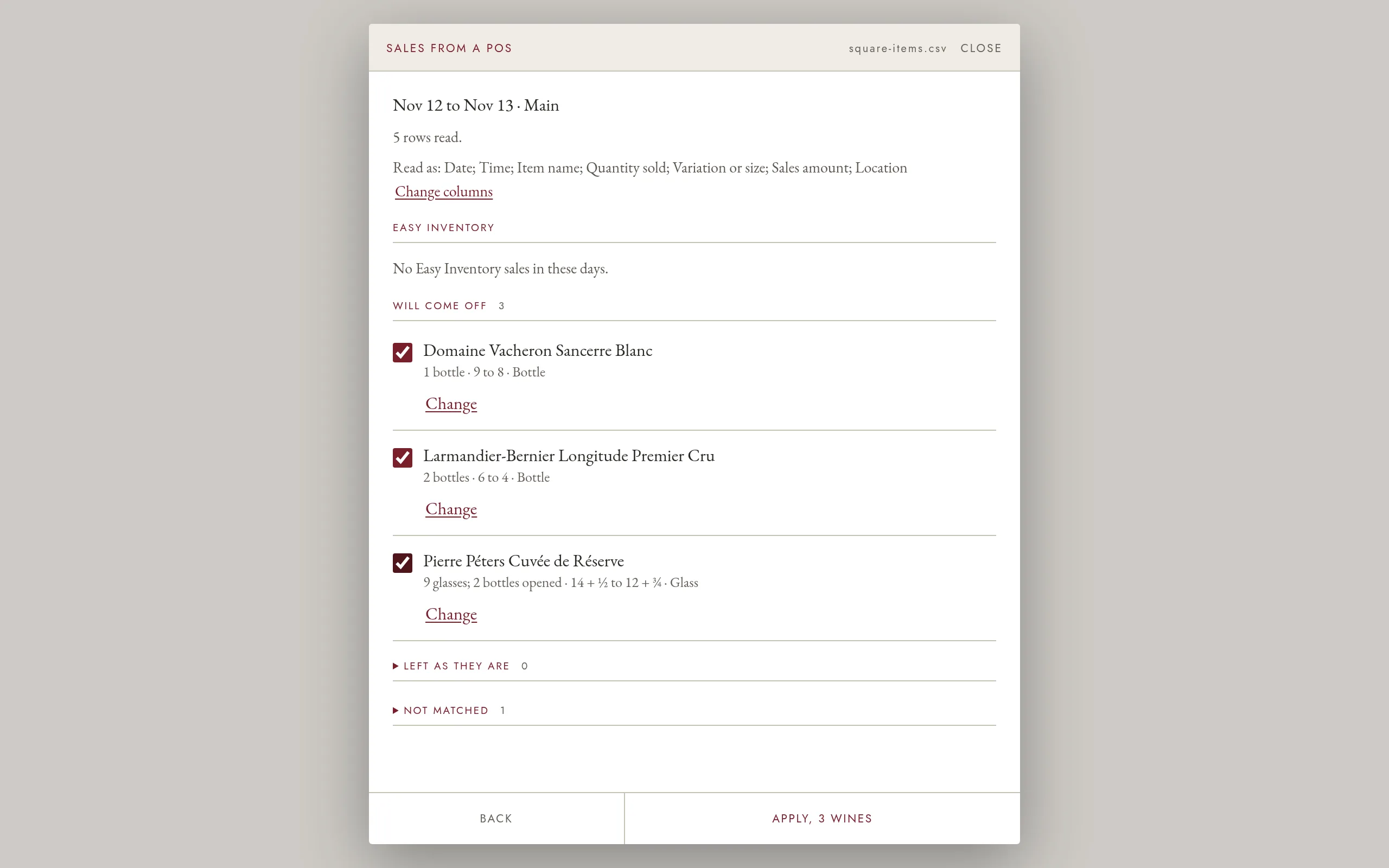
- Under Will come off, each wine shows what sold and its count before and after. Untick any you want left alone; Change fixes the wine or the size. Not matched holds food and anything else; match one to a wine, or mark it Not a wine so the next file skips it. TableSet remembers each choice for next time.
- Press Apply. Each change goes in the record of changes as Sales from a POS, on the day it sold, and counts as Sold in the report. Undo, on the next screen, puts every count back.
- In your point of sale, export item sales for the days since you last brought them in: in Square, Transactions, Export, Item Detail CSV; in Toast, the ItemSelectionDetails file from the data export, or Product Mix; in Clover, Reports, Item sales, Export; in Lightspeed, Line transactions, or Product Mix. A file with a date on each row is best.
- In Inventory, press More, Import, then Import sales from a POS, and choose the file.
- TableSet matches each item to a wine: first one you matched before, then by item code, then by name and vintage. It tells a glass from a bottle by the size in the file (Glass, Bottle, 6 oz), then by price. An item it cannot place is under Choose a size; press Bottle or Glass, or Other for a carafe or half bottle.
- Under Will come off, each wine shows what sold and its count before and after. Untick any you want left alone; Change fixes the wine or the size. Not matched holds food and anything else; match one to a wine, or mark it Not a wine so the next file skips it. TableSet remembers each choice for next time.
- Press Apply. Each change goes in the record of changes as Sales from a POS, on the day it sold, and counts as Sold in the report. Undo, on the next screen, puts every count back.
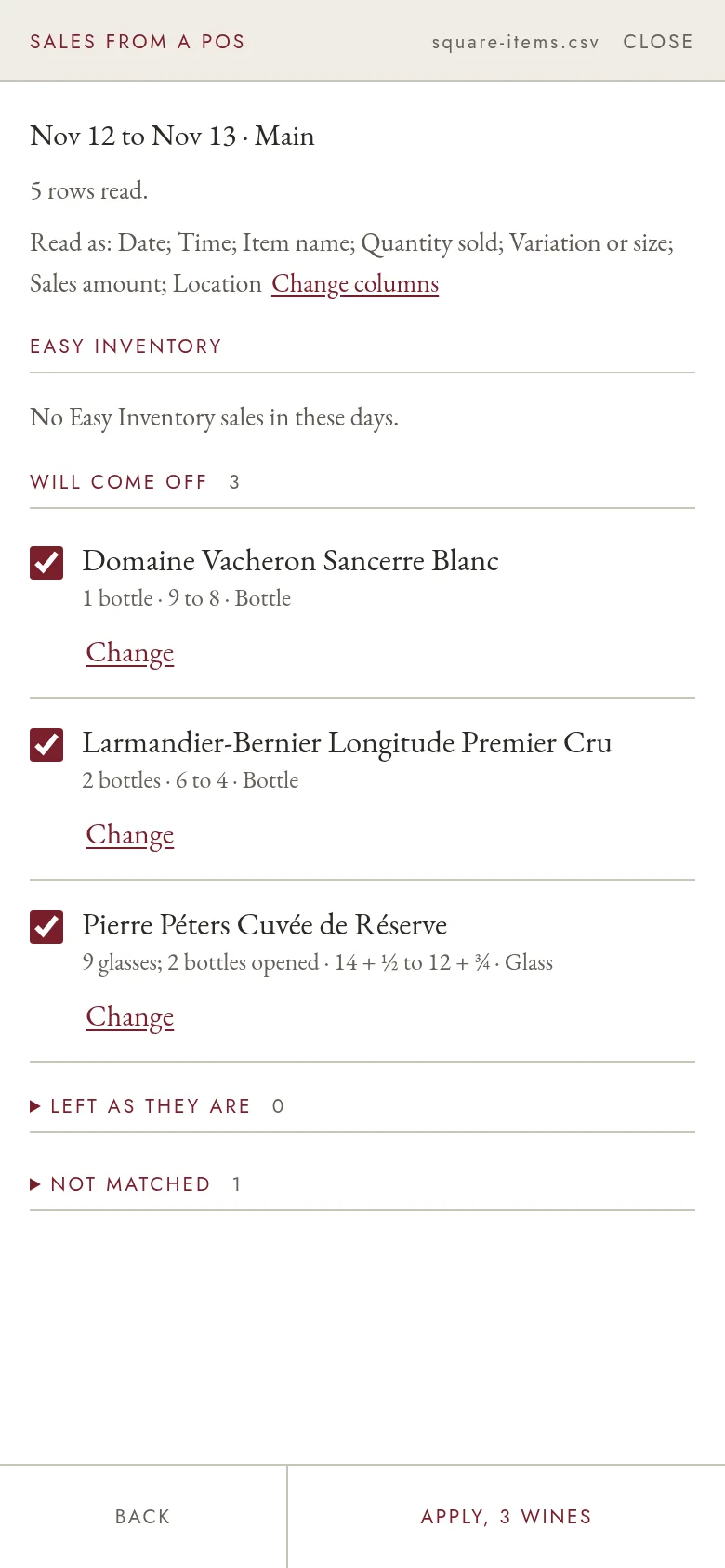
Glasses. A glass comes out of the open bottle; when it runs out, the next bottle is opened and comes off the count. The number of glasses in a bottle follows the pour under More, Settings, Pour by the glass: 5 oz gives five glasses from a 750 ml bottle, 6 oz gives four. A wine poured differently can have its own, on its page under Pouring, Glasses per bottle.
Nothing counted twice. Days already brought in are left out. Sales from before a wine’s last count are left out, since the count already saw them; a totals file that crosses a count leaves that wine unticked. If Easy Inventory took bottles off on the same days, TableSet asks: only the difference, leave those days out, or use the POS instead. Broken, corked, comped and staff minuses are never touched.
A file from several locations asks which one is this establishment. Sales are a guide between counts; a Full count is still the truth.