Help · Lists
Lists
Start a list, choose its look, and rename, move or delete it.
Start a new list
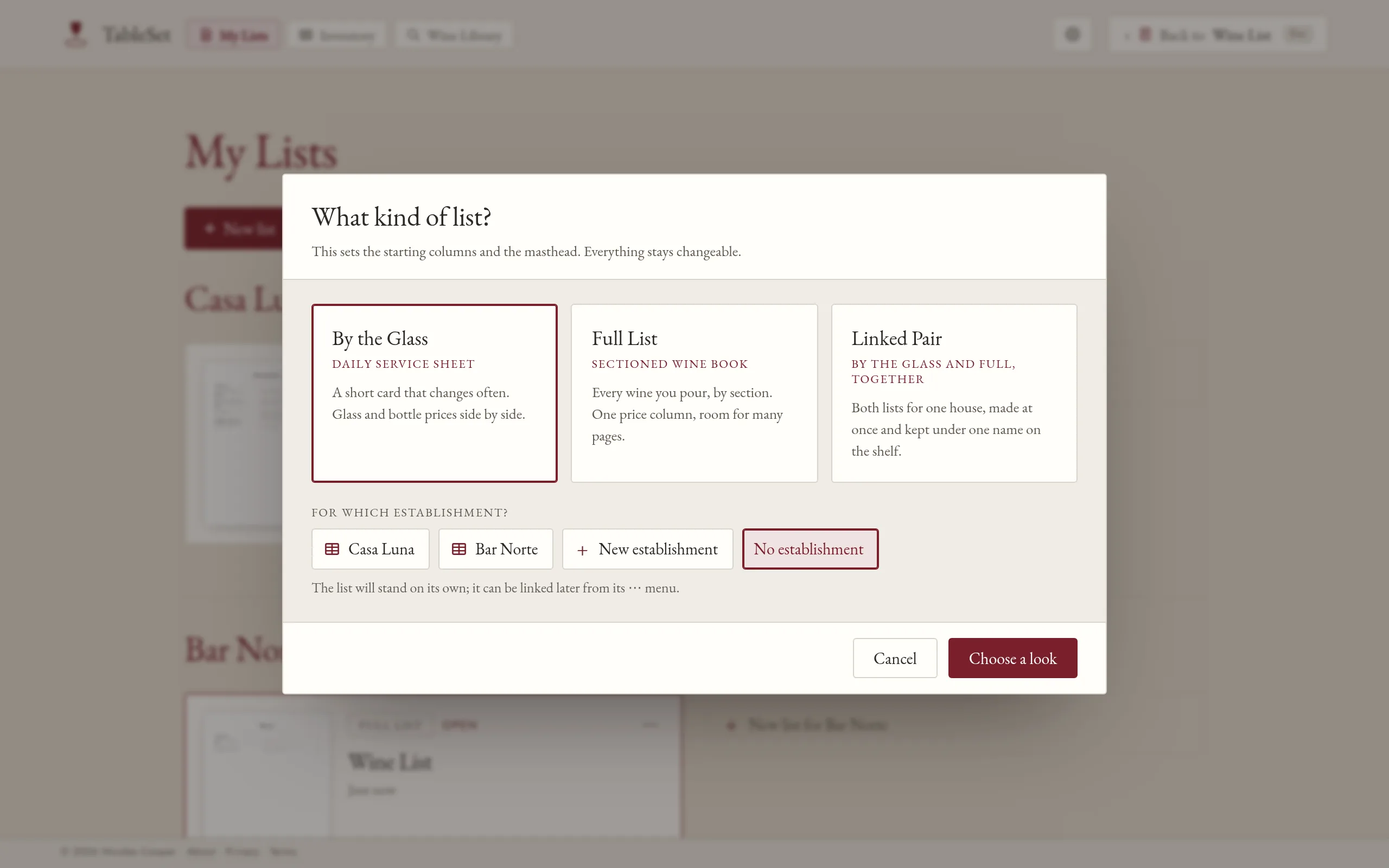
- On My Lists, press New list, or New list for an establishment beside its lists.
- Choose the kind: By the Glass, Full List or Linked Pair.
- Under For which establishment?, choose one, New establishment, or No establishment.
- Press Choose a look.
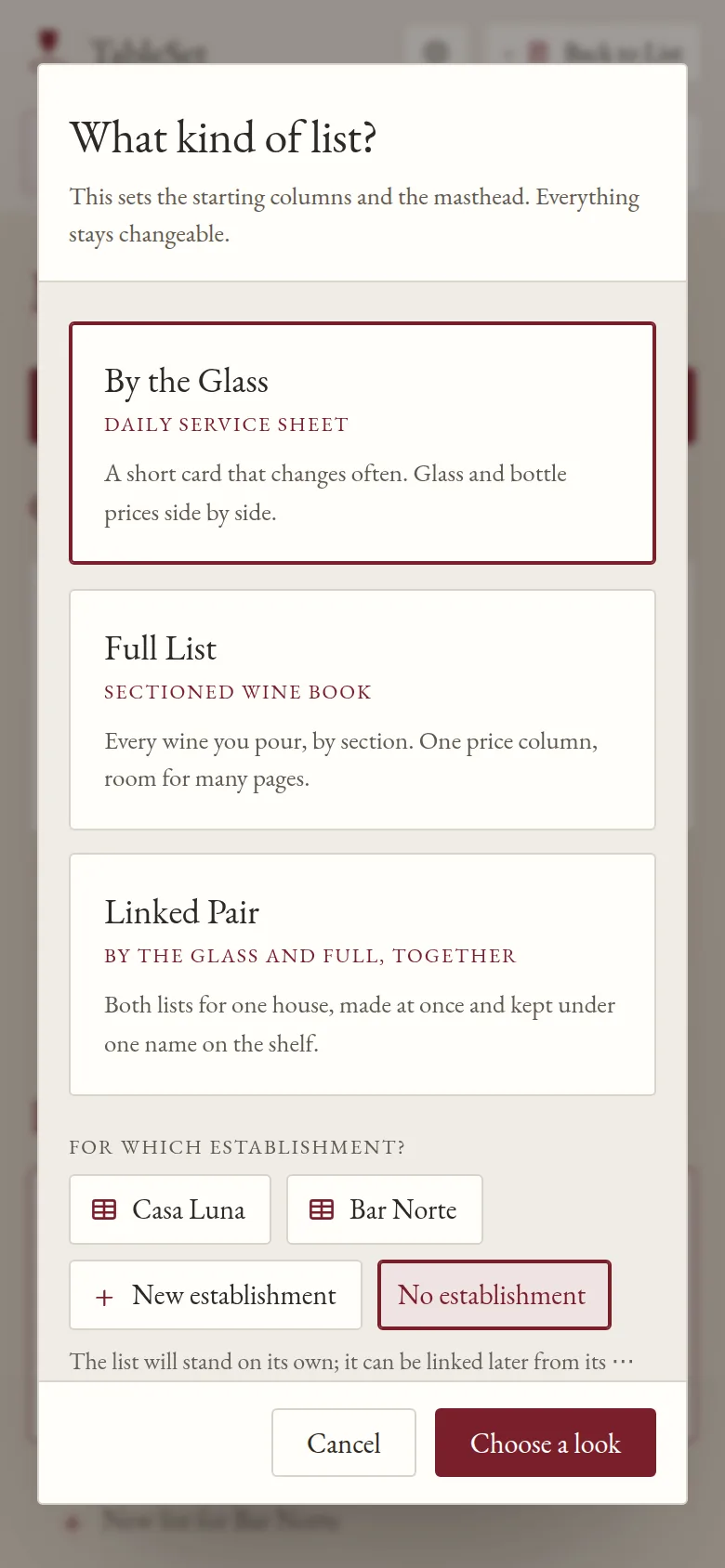
- On My Lists, press New list, or New list for an establishment beside its lists.
- Choose the kind: By the Glass, Full List or Linked Pair.
- Under For which establishment?, choose one, New establishment, or No establishment.
- Press Choose a look.
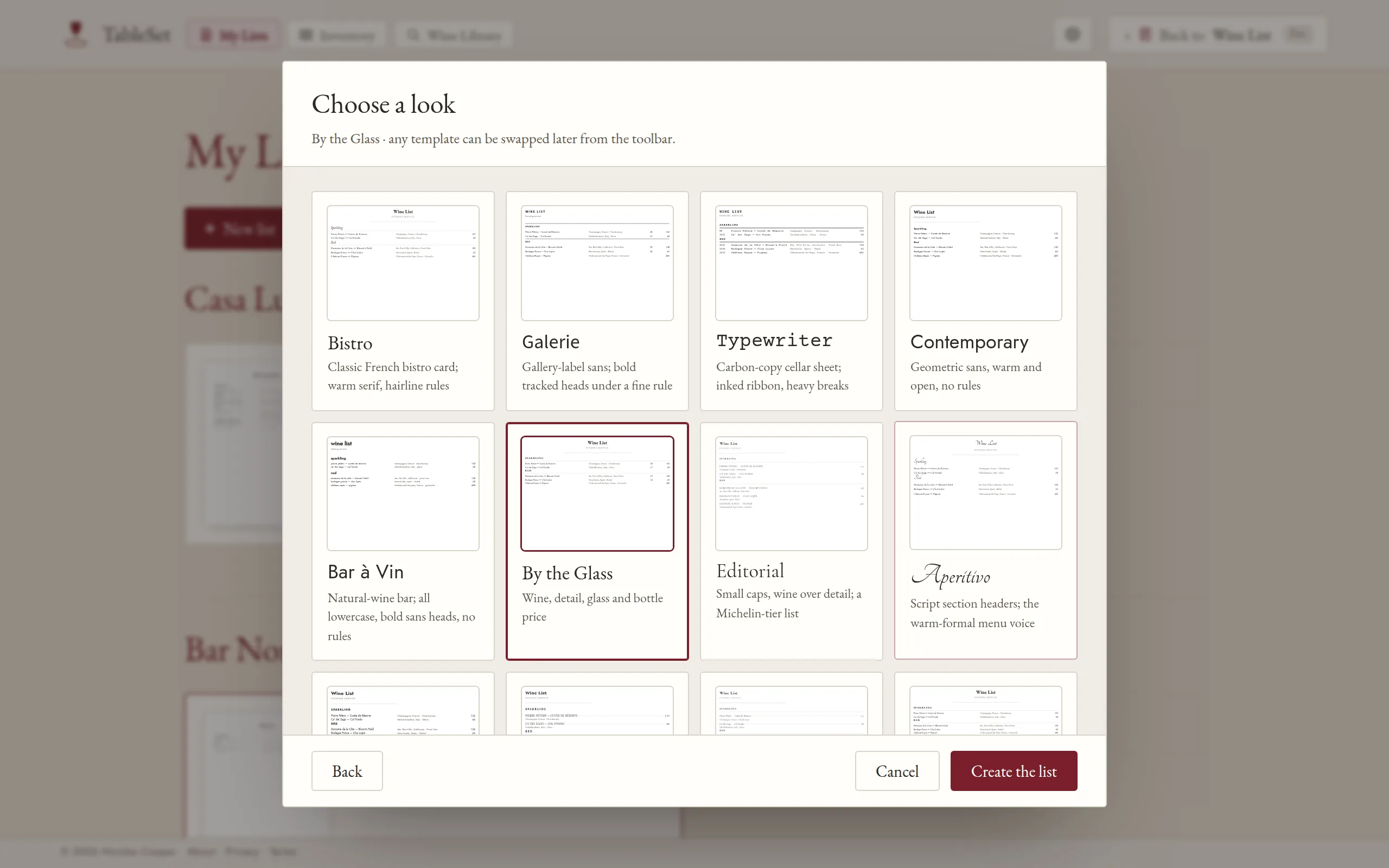
Choose a look
- Choose a template card. The one picked for the kind of list is already marked.
- Press Create the list.
- Choose a template card. The one picked for the kind of list is already marked.
- Press Create the list.
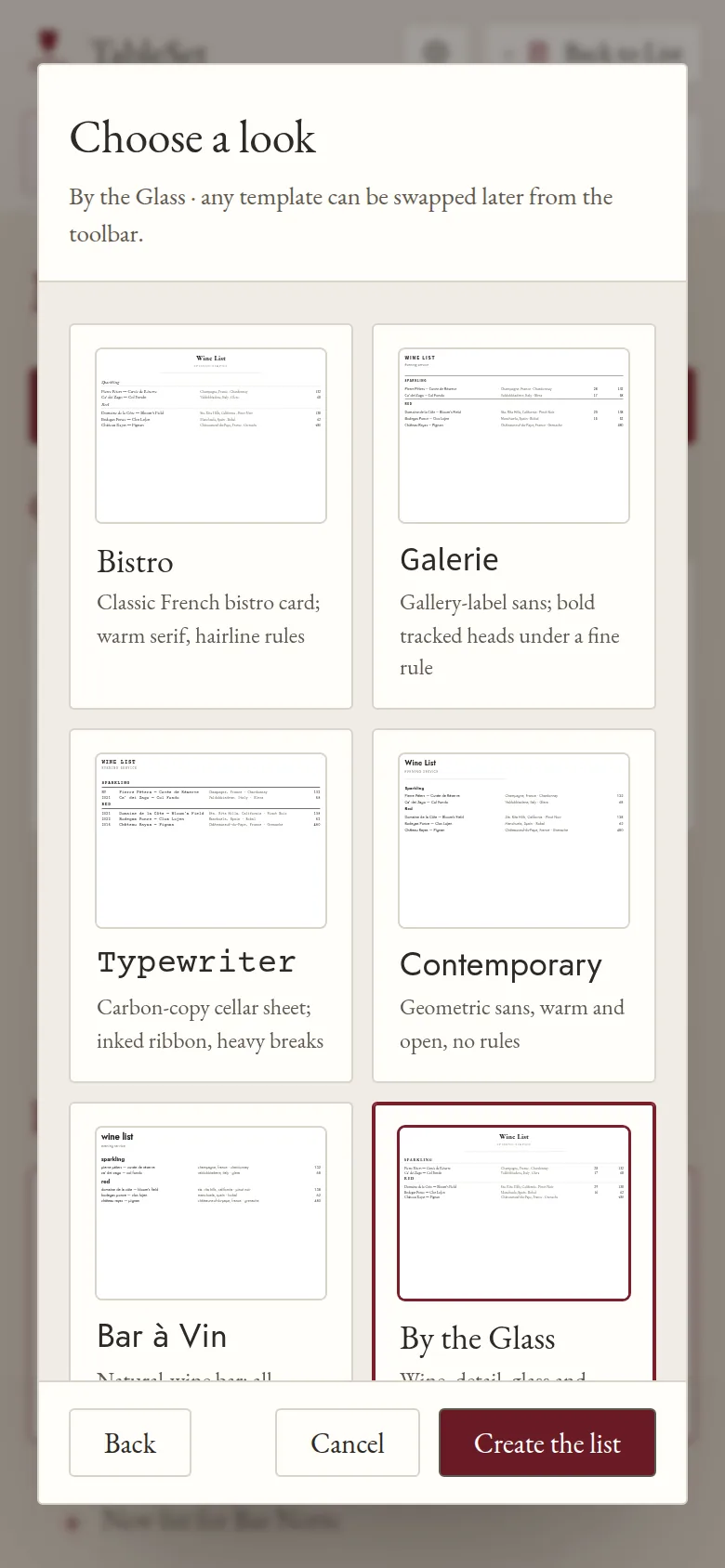
Nothing here is final; Template on the toolbar swaps the look at any time.
By the Glass, Full List and Linked Pair
- By the Glass is a short card that changes often, with glass and bottle prices side by side.
- Full List is a sectioned wine book: every wine you pour, one price column, room for many pages.
- Linked Pair makes both lists for one establishment at once and keeps them under one name on the shelf.
Rename, duplicate, move or delete a list
- On My Lists, press ⋯ on the list’s card.
- Choose Rename, Duplicate, Move to another establishment, Unlink from establishment or Delete.
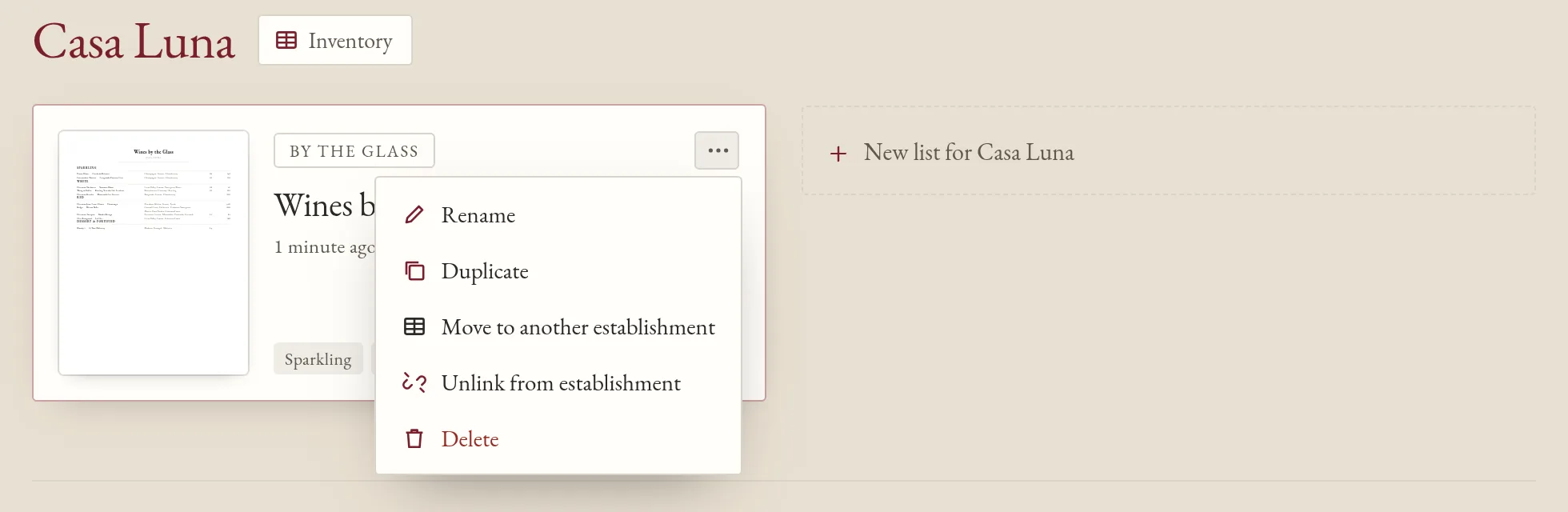
- On My Lists, press ⋯ on the list’s card.
- Choose Rename, Duplicate, Move to another establishment, Unlink from establishment or Delete.
Delete asks a second time before it removes the list.
Open a sample list
To try things on a list that is not yours, open Settings and, under About, press Open a sample list. Its wines stay out of Inventory.