Help · Lists
The look
Templates, fonts, the page, borders, logo and credit.
Templates
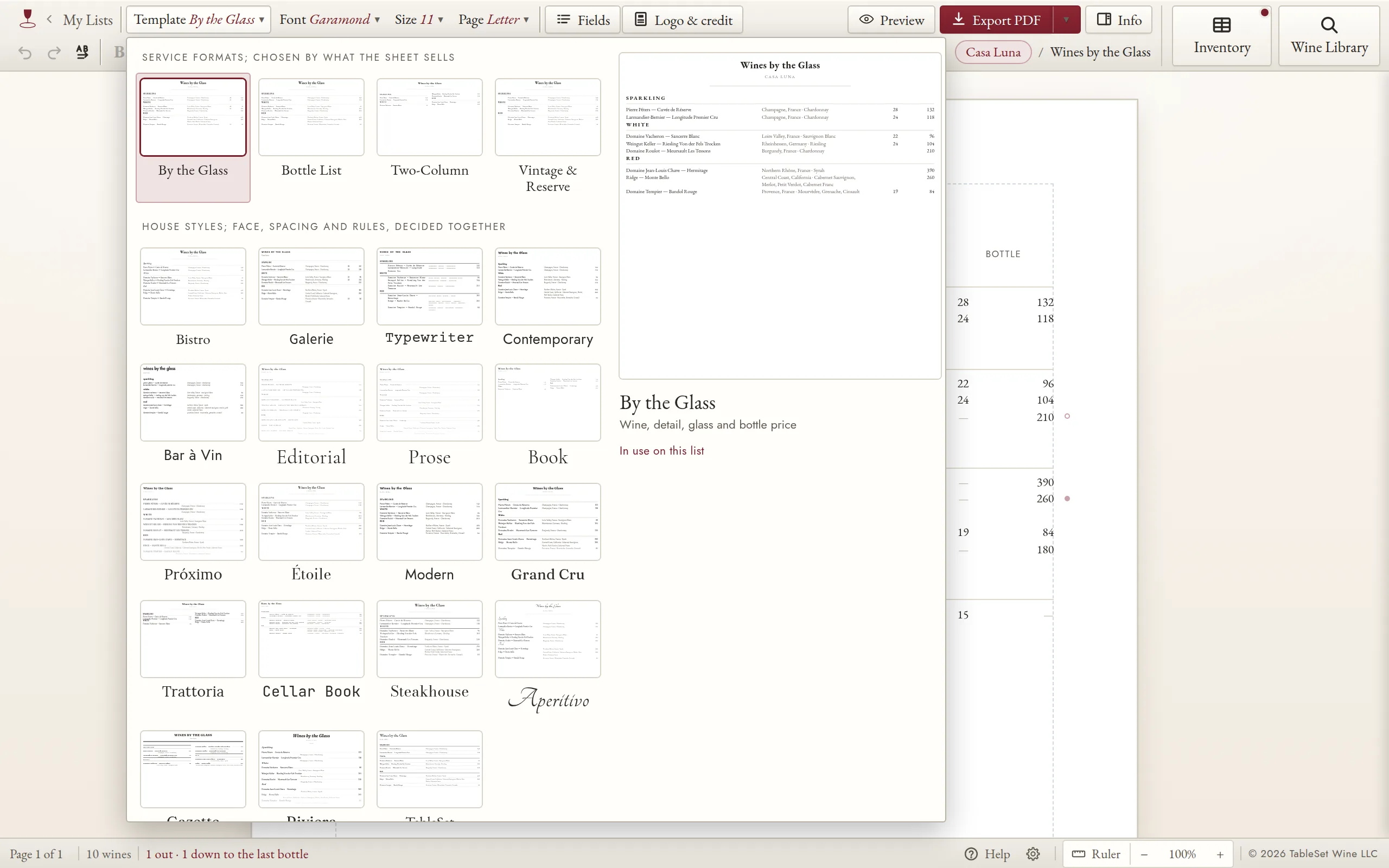
A template sets the columns, the face, the spacing and the rules together. There are 23: service formats, chosen by what the sheet sells, and house styles.
- Press Template.
- Point at a template to preview it; click to use it.
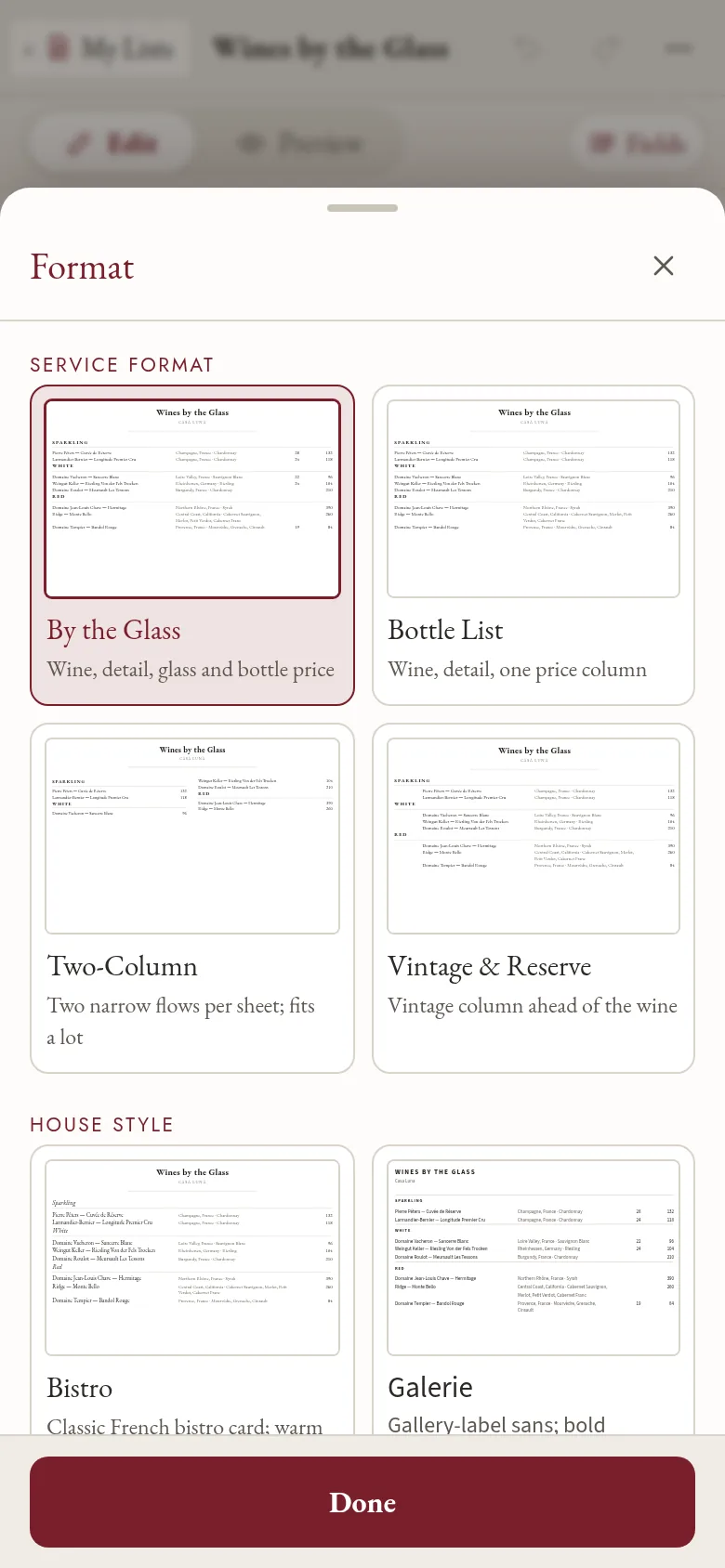
- Tap Format.
- Choose a Service format or a House style.
- Tap Done.
Font and size
- Font changes the face of the whole list.
- Size sets the type size.
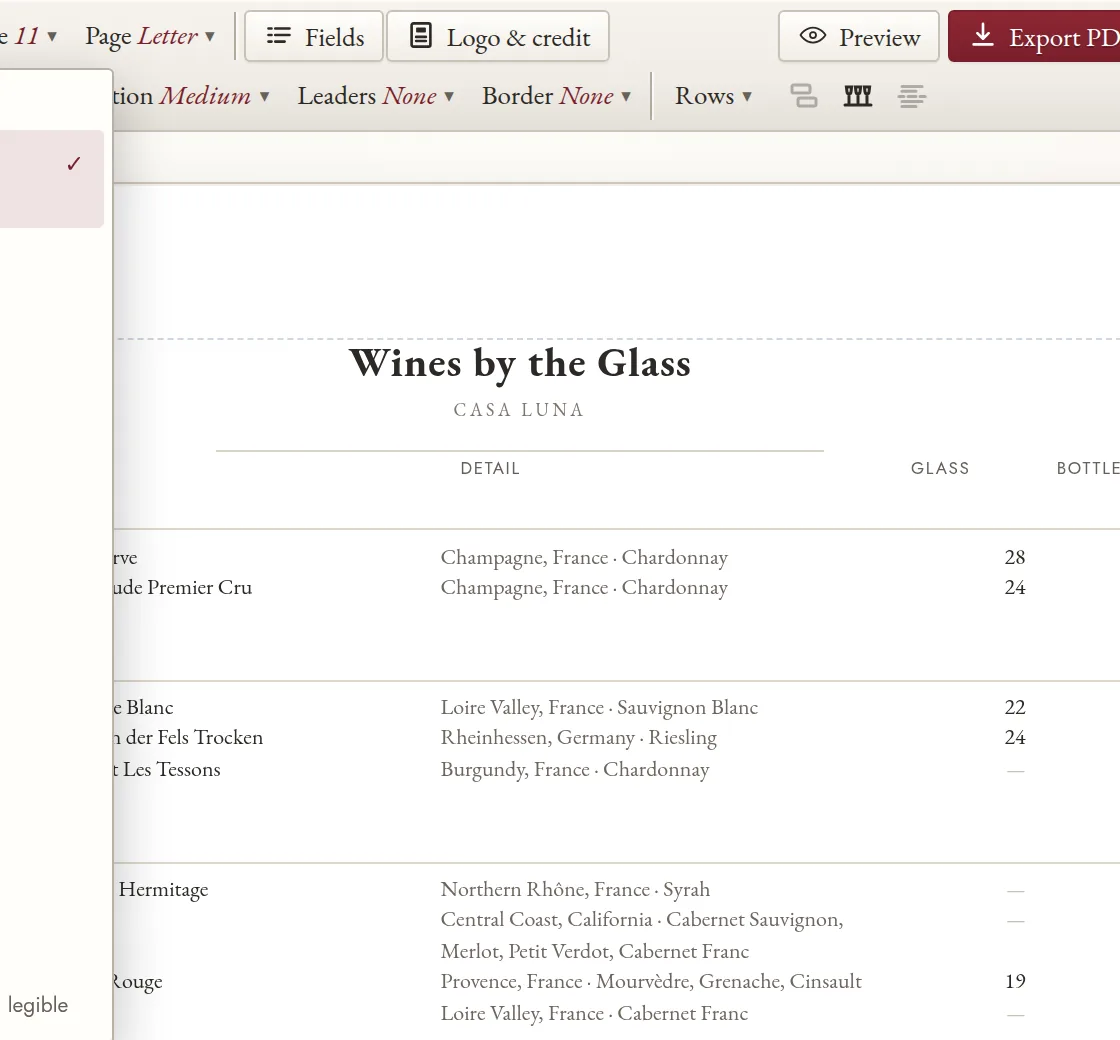
- Font changes the face of the whole list.
- Size sets the type size.
Paper, margins and orientation
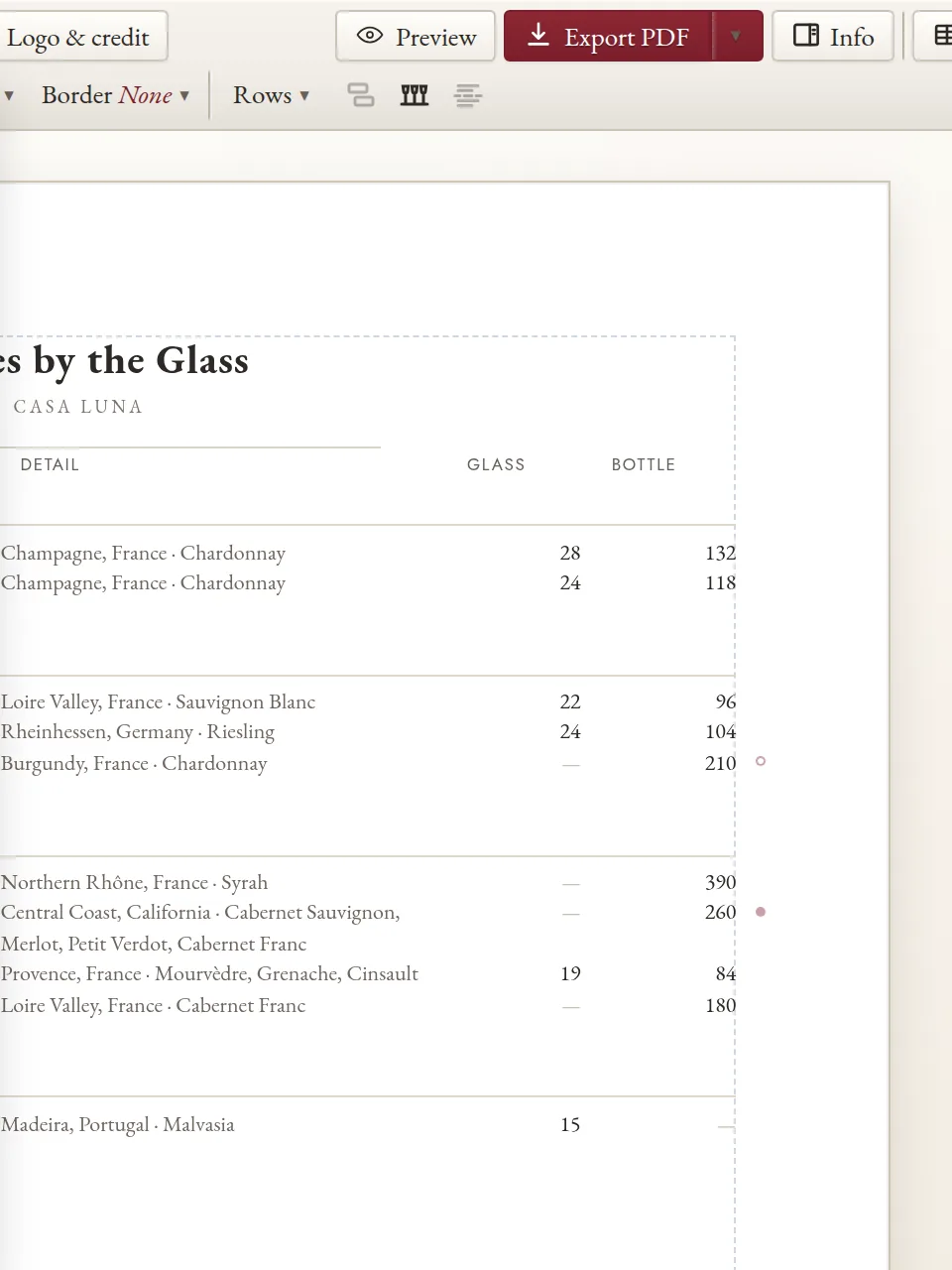
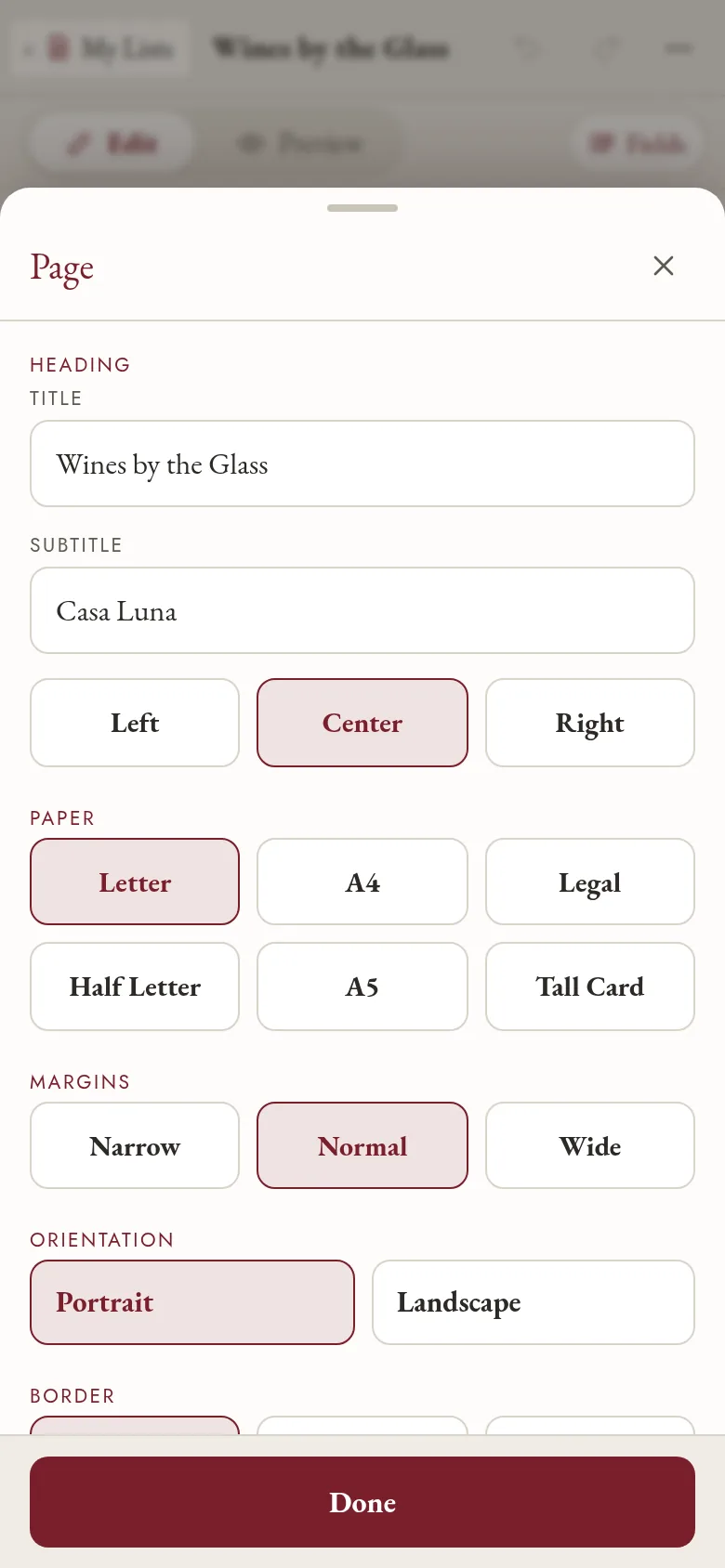
- Press Page.
- Choose the paper (Letter, A4, Legal, Half Letter, A5 or Tall Card), the margins and the orientation.
- Tap Page.
- Set the heading’s title, subtitle and alignment, then the paper, margins, orientation and border.
- Tap Done.
Borders
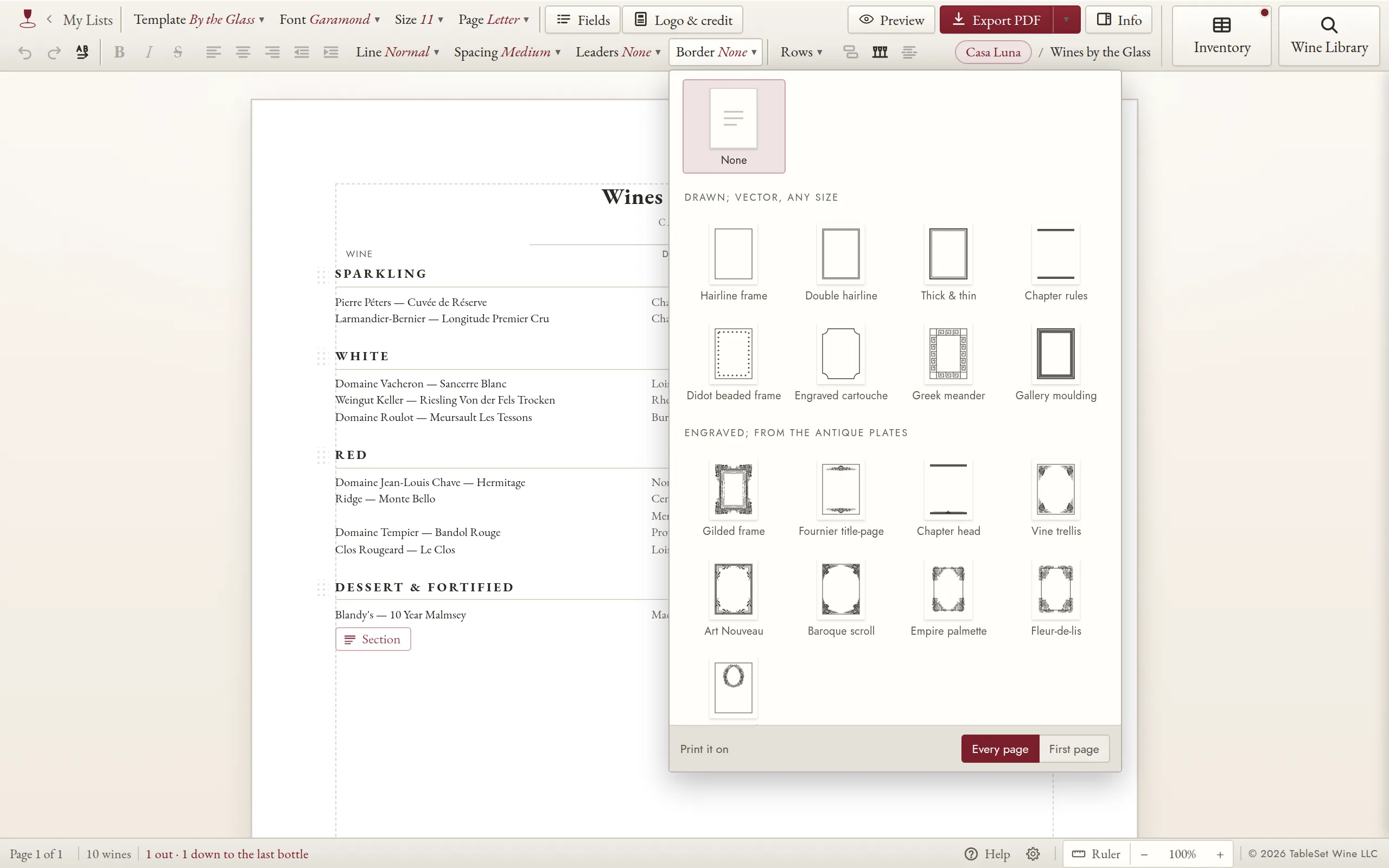
There are 17 borders: drawn ones, which print sharp at any size, and engraved ones, from antique plates.
- Press Border and choose one.
- Under Print it on, choose Every page or First page.
- Tap Page, then choose under Border.
The picture for this is on the desk.
Line spacing, section size and leaders
On the second row of the desk toolbar, Line sets the spacing (Tight, Normal or Relaxed), Spacing sets the space between sections, and Leaders joins each wine to its price with dots or a line, or nothing.
Logo and credit
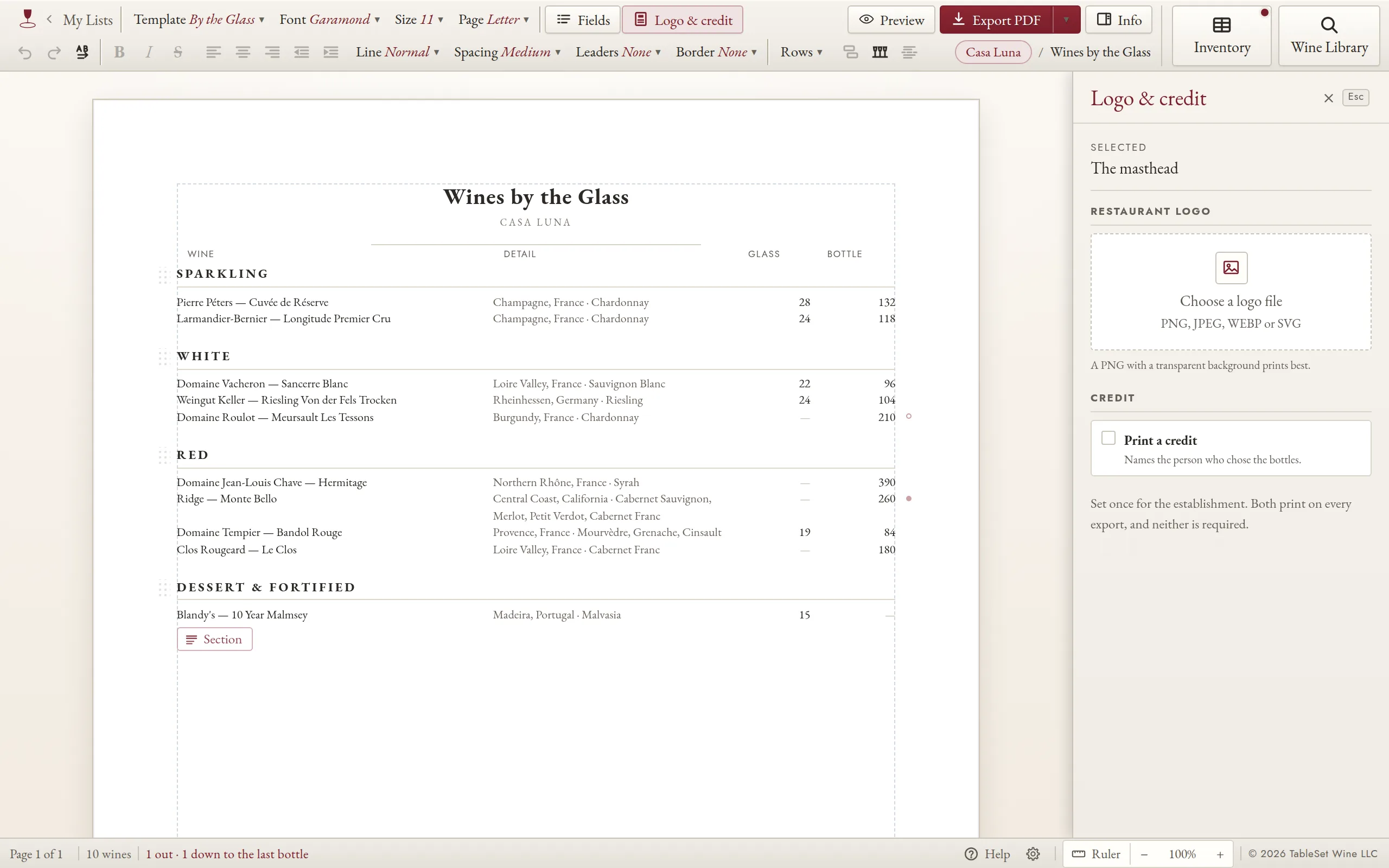
- Press Logo & credit.
- Press Choose a logo file (PNG, JPEG, WEBP or SVG). A PNG with a transparent background prints best.
- Tick Print a credit to name the person who chose the bottles.
- Press Logo & credit.
- Press Choose a logo file (PNG, JPEG, WEBP or SVG). A PNG with a transparent background prints best.
- Tick Print a credit to name the person who chose the bottles.
Both are set once for the establishment and print on every export; neither is required.
Light and dark
In Settings, under Display, Appearance switches the rooms between Light and Dark. The printed sheet stays white.