Help
Account and your data
Signing in, a guest pass, keeping lists safe, backups and closing the account.
Sign in
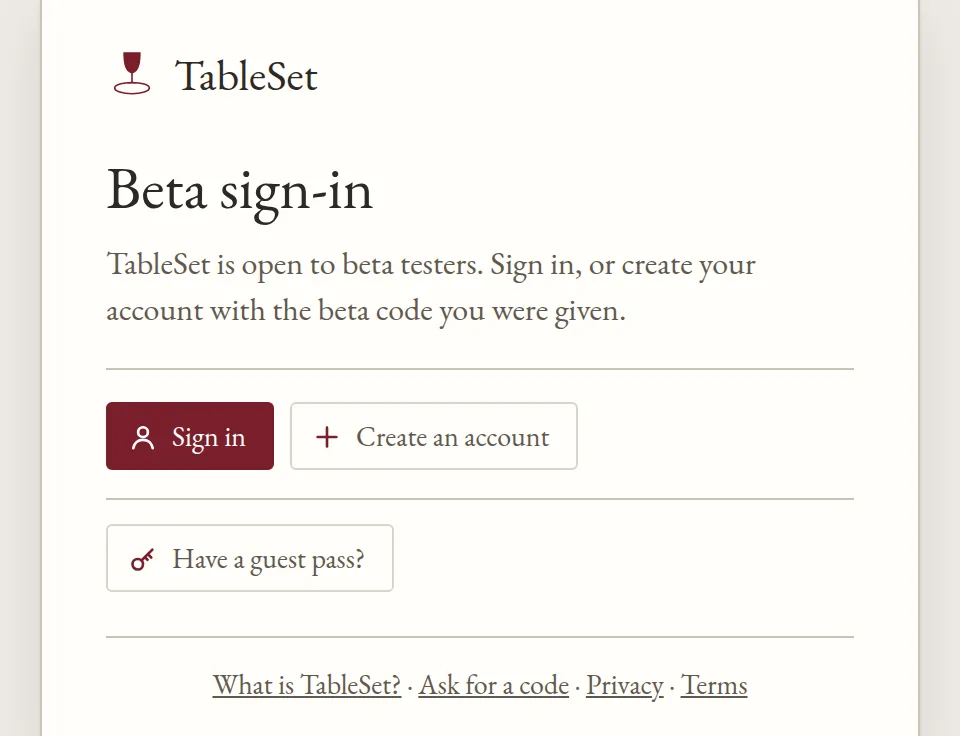
TableSet is open to beta testers. It opens on Beta sign-in until this device is signed in.
- Press Sign in and enter your email address and password.
- New here? Press Create an account and enter the beta code you were given, or the invite code from your restaurant.
- Given a guest pass instead? Press Have a guest pass?, type it and press Use pass. TableSet opens without an account, and your lists stay on this device; keep a backup file.
- No code yet? Ask for a code writes to [email protected].
- Press Sign in and enter your email address and password.
- New here? Press Create an account and enter the beta code you were given, or the invite code from your restaurant.
- Given a guest pass instead? Press Have a guest pass?, type it and press Use pass. TableSet opens without an account, and your lists stay on this device; keep a backup file.
- No code yet? Ask for a code writes to [email protected].
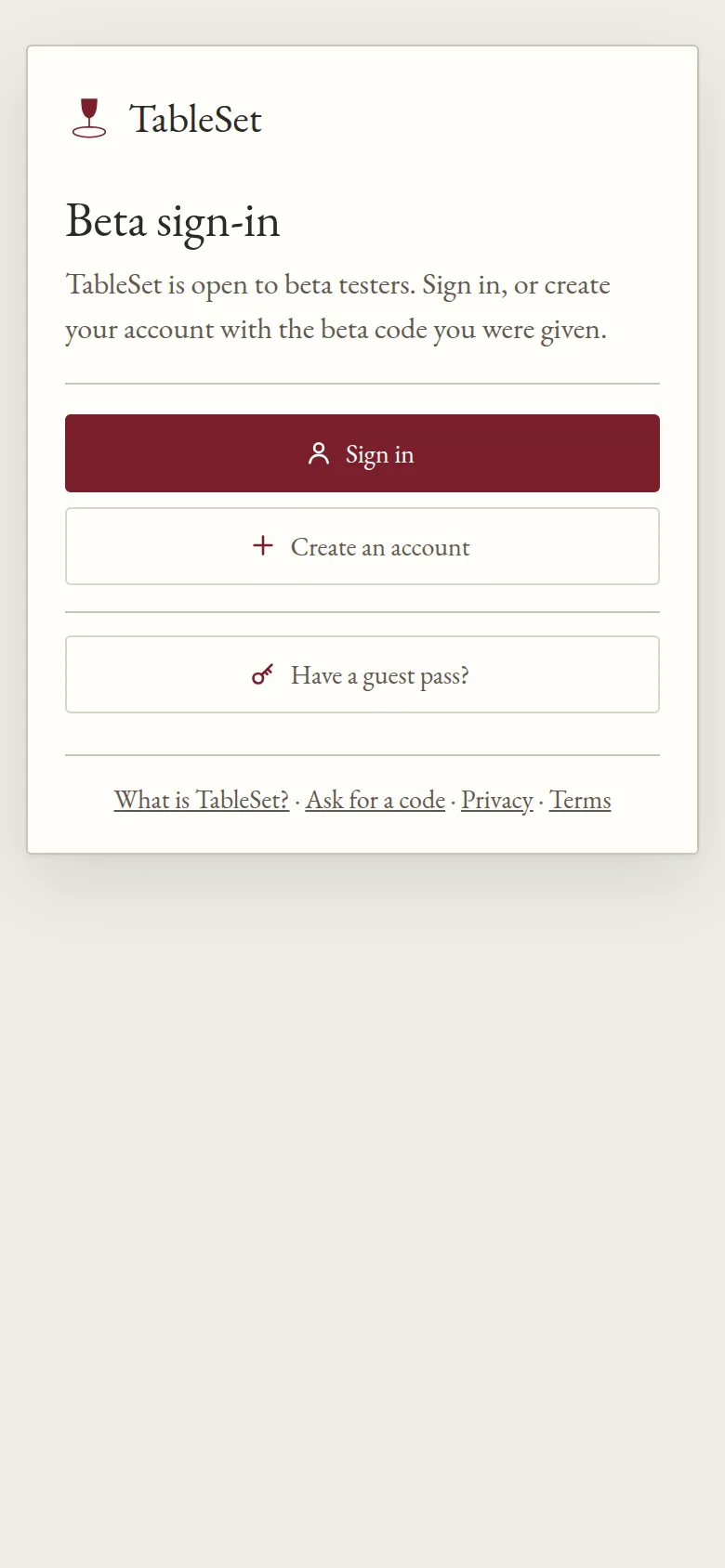
Forgot your password? Forgot password in the sign-in form sends a link to reset it.
A guest pass
A guest pass opens TableSet on one device without an account. Everything works; the lists are kept on that device only, with no copy in an account.
- On Beta sign-in, press Have a guest pass?.
- Type the pass you were given and press Use pass.
- Keep a backup file now and then: Settings, Your data, Download a backup.
- On Beta sign-in, press Have a guest pass?.
- Type the pass you were given and press Use pass.
- Keep a backup file now and then: Settings, Your data, Download a backup.
If the pass is withdrawn, Beta sign-in comes back on the next visit and the lists stay on the device. Create an account later and TableSet offers to bring the device’s lists into it.
Lists without an account
Signed out, or on a guest pass, the lists live in this browser. When they need looking after, a small button appears beside the count of lists on My Lists, one at a time:
- Keep your lists safe, on Safari or any browser on an iPhone or iPad. Safari clears what a site keeps after about a week away; an app on the Home Screen (on a Mac, in the Dock) keeps its own copy.
- Backup due, when the lists have changed since the last backup. It says when that was.
- Press the button to open it.
- Press Download a backup and keep the file; or Not now, which puts it away for a week (two, for Safari).
- To move to the Home Screen: download a backup, then press the Share button and Add to Home Screen. Open TableSet from the Home Screen and, in Settings, press Restore from a backup. The new app starts empty until you do.
Signed in, neither button shows; the lists are in the account.
Password, email and signing out
- Forgot the password? On Beta sign-in, press Forgot password, type the address, and open the link we send on the same device. Choose a new password there.
- When the password or the email address on an account changes, TableSet writes to the address to say so. If it was not you, write to [email protected] at once, from that address.
- To sign out, open Settings and, under Account, press Sign out. Sign out, keep it on this device leaves a copy here; Sign out and remove it from this device is for a shared device, such as the restaurant tablet. The account keeps everything either way.
A new device
Sign in on the new device with the same account and your lists are there. A backup file restores them too.
Inviting your staff
- The owner of the account opens Settings and, under People, presses Invite someone.
- Type their email address and press Make the invite. TableSet shows a code, such as JOIN-7KQ2-M4XD, and a short message with it. Press Copy the message and send it to them in any way you like; TableSet sends nothing.
- They open TableSet, press Create an account with that email address, and type the code. The restaurant name stays blank. They join as an Editor: they work on the lists and Inventory with you, and cannot invite, remove people or change the plan.
- A code works once, for that email address only, for seven days. Until it is used, People shows it as Invited, with Show to see the code again and Cancel this invite to withdraw it.
- To take someone off, press Remove beside their name, then Remove for good. Their device signs out the next time it checks, and keeps none of the restaurant. What they made stays.
- Up to ten people can share one restaurant, counting open invites. Someone who was invited can leave at any time: in Settings, press Leave and the restaurant’s name.
Back up, restore and erase
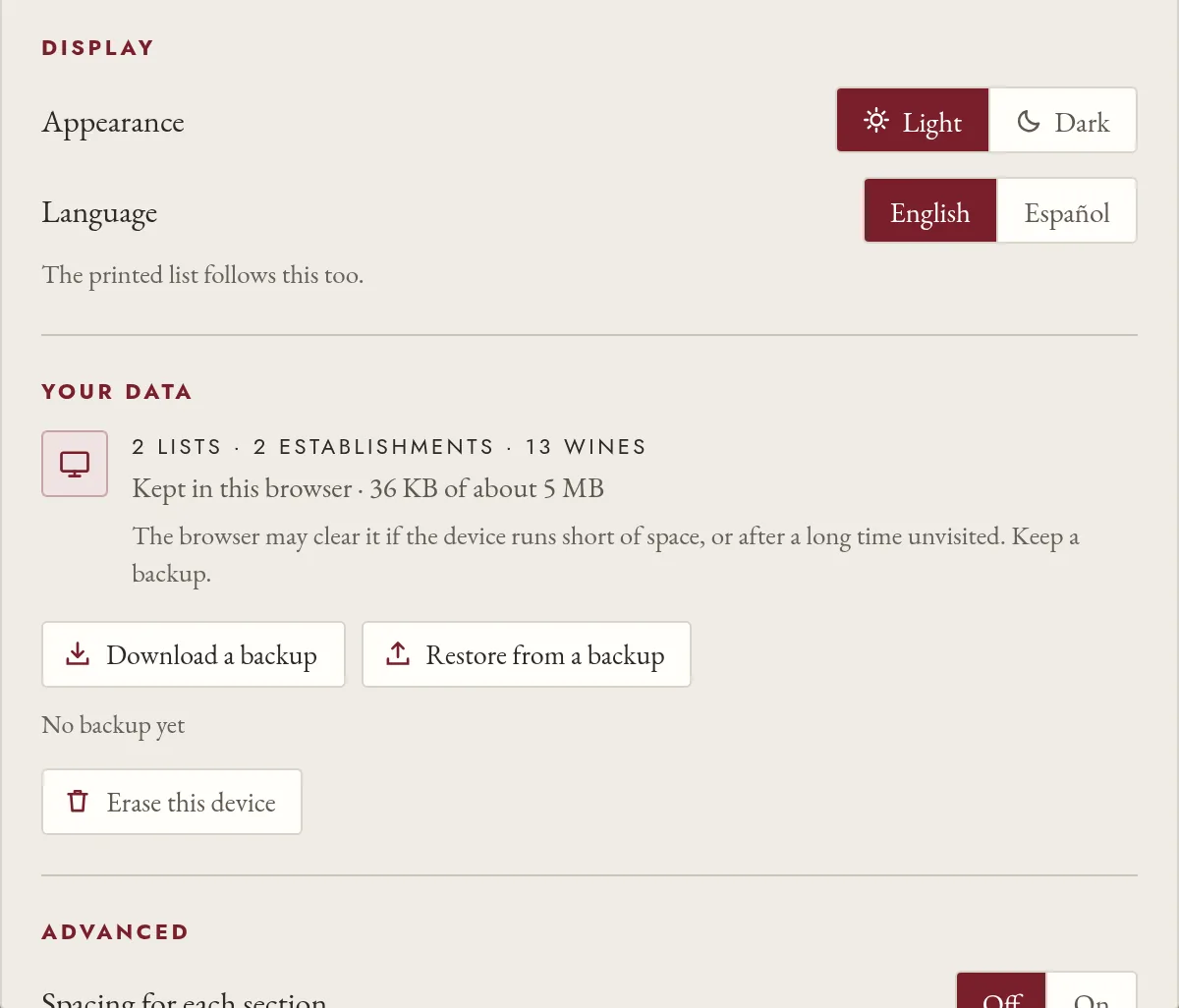
- Open Settings with the gear.
- Under Your data, press Download a backup and keep the file.
- Restore from a backup brings a file back.
- Erase this device removes everything TableSet keeps in this browser, after asking.
- Open Settings with the gear.
- Under Your data, press Download a backup and keep the file.
- Restore from a backup brings a file back.
- Erase this device removes everything TableSet keeps in this browser, after asking.
Language and appearance
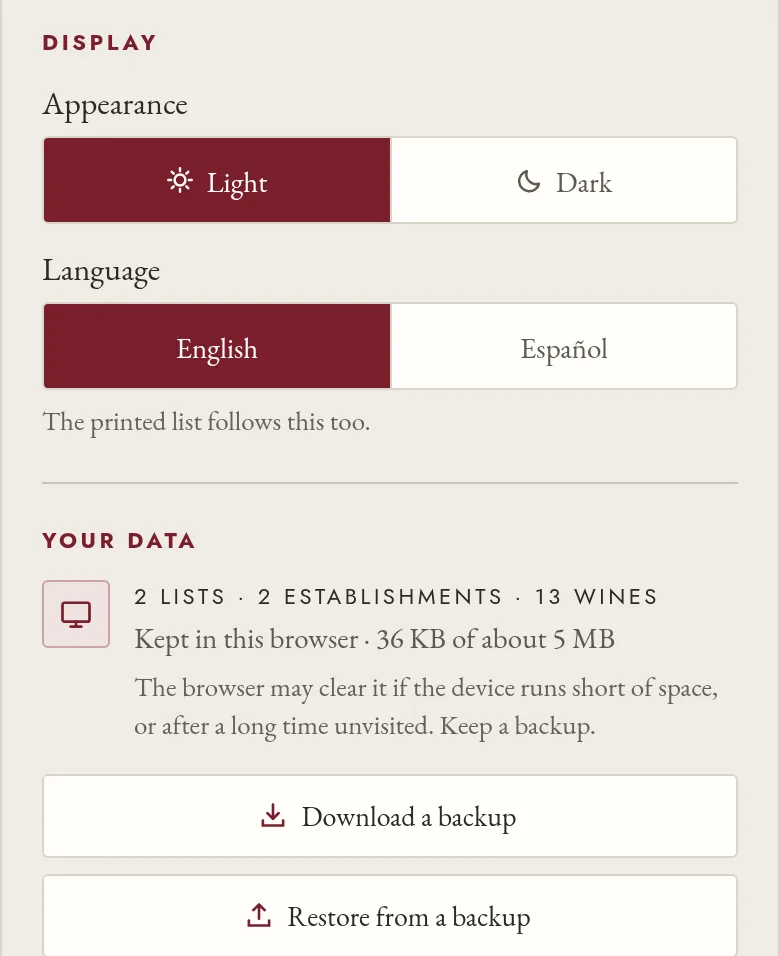
Under Display, Language switches TableSet between English and Español; the printed list follows it too. Appearance switches between Light and Dark.
Close your account
In Settings, under Account, press Delete account, then Delete it for good. It removes the account and everything in it at once, and cannot be undone; download a backup first if you may want the lists again. An owner who shares the restaurant removes the others under People first.