TableSet Open TableSet

Getting started

Your first wine list, in a few minutes.

TableSet works like a sheet of paper that knows about wine. You type on the page, the Wine Library fills in the details, and what you see is what prints. This page walks through a first visit, then lists every feature in one place.

Nothing to install. It runs in the browser on a computer or a phone, and your lists are saved on the device until you sign in.

Finding your way

Three tabs, and a gear.

Everything in TableSet lives under three tabs at the top of the screen. The gear beside them opens Settings.

My Lists

Your wine lists, as sheets on a shelf. Start a new one here, or open one to edit it.

Inventory

The bottles you have, for each establishment, grouped by region. Count them here.

Wine Library

More than 33,000 wines, curated by a certified sommelier. Find one, then add it to a list or to Inventory.

While you are in the Wine Library or Inventory, a button at the top right reads Back to, with the name of the list you came from. Press it, or Esc, to return.

Your first list

Six steps, from a blank page to a printed list.

1

Start a list

On My Lists, choose the kind of list you want under Start a list.

  • By the Glass: a short card that changes often.
  • Full List: every wine you pour, by section, across as many pages as it needs.
  • Linked Pair: both, made at once for the same house.

Name the establishment, pick a look, and press Create the list. The establishment is where the list's wines are filed in Inventory. The look can be changed at any time from the toolbar, so there is no wrong choice here.
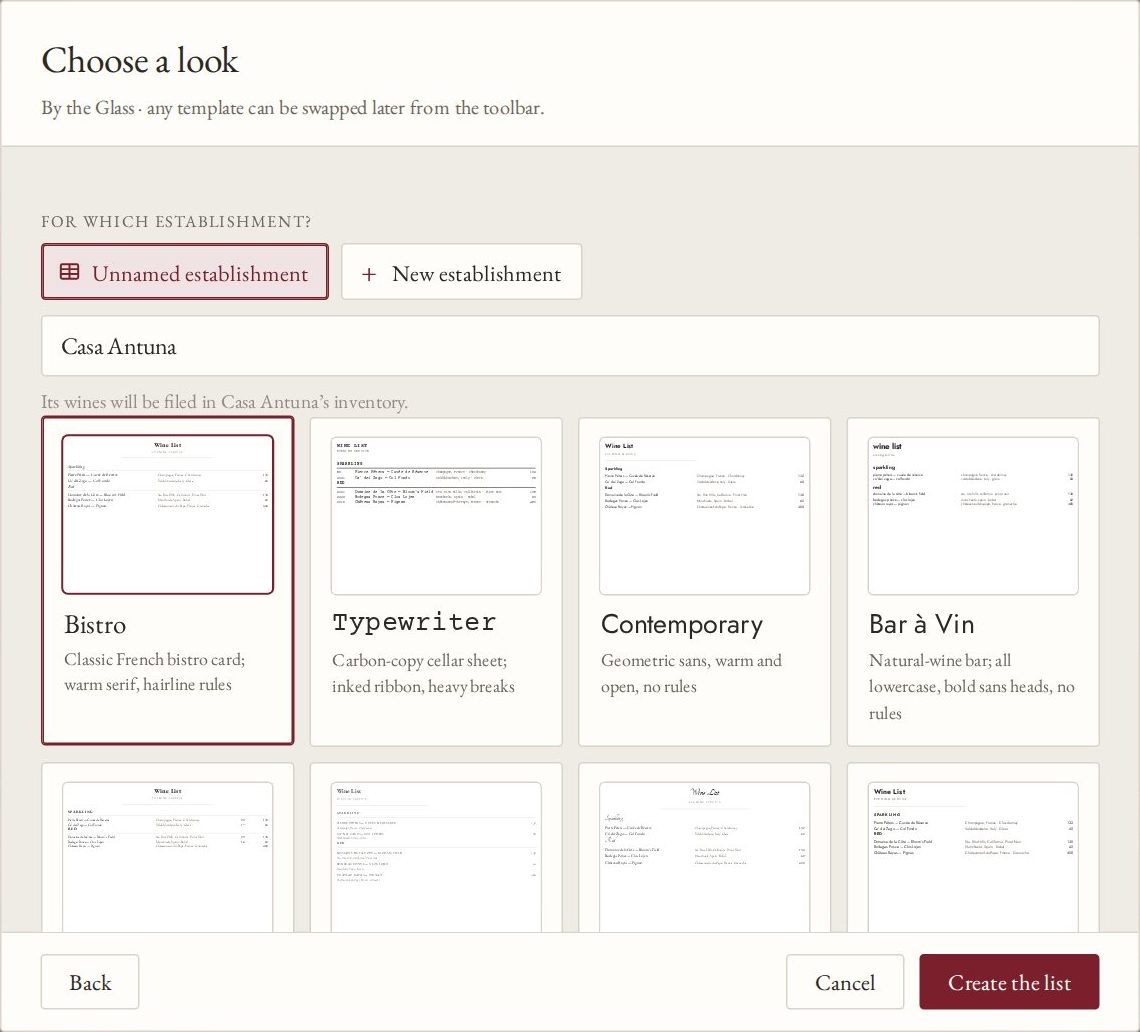
The Choose a look window: the establishment named Casa Antuna, and template cards for Bistro, Typewriter, Contemporary and Bar à Vin, with Create the list at the bottom

2

Type a wine

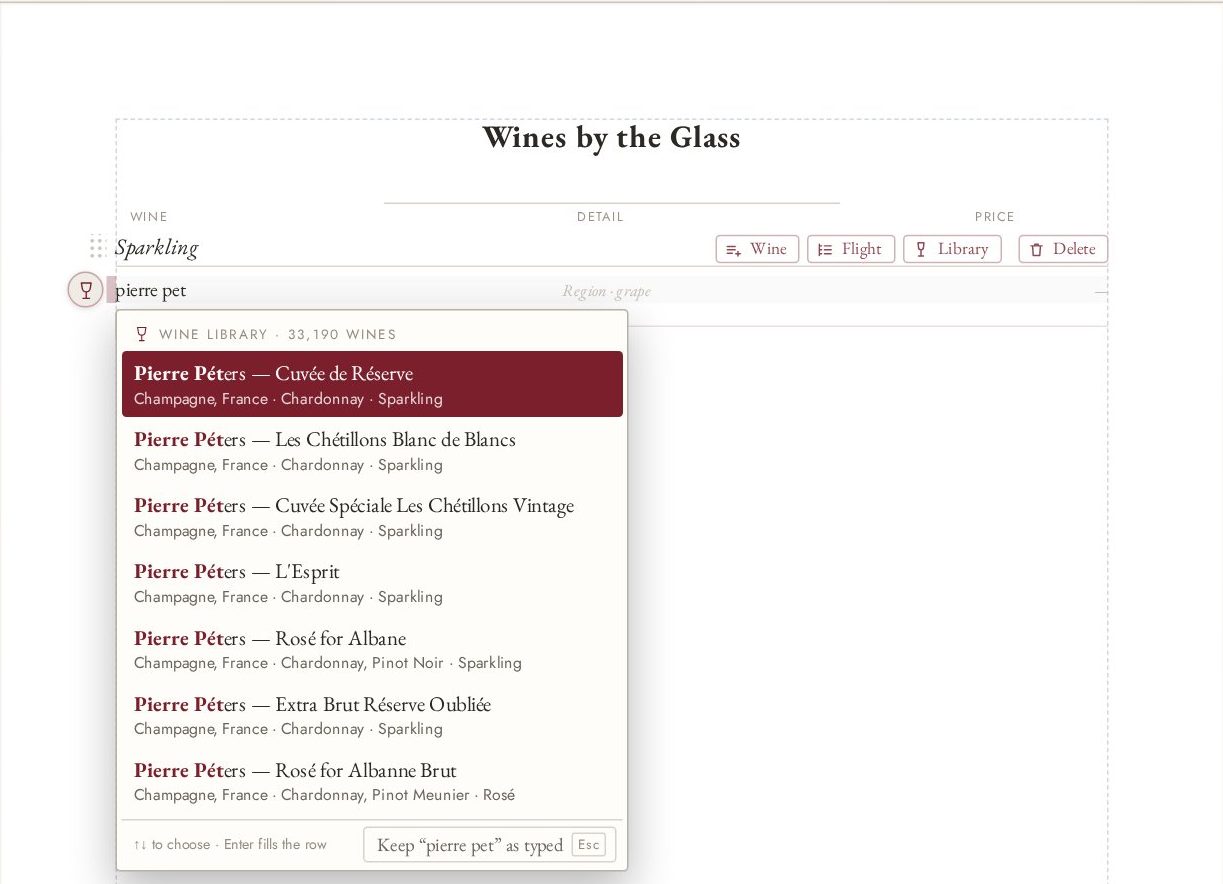
Click the empty row under a section heading and start typing a producer or a wine. After two letters, the Wine Library offers matches.

  • Use the arrow keys to choose, and Enter to fill the row.
  • Not in the Library? Press Esc to keep exactly what you typed.
  • Or press Library on the section to search first, then Add to that section.
Typing pierre pet on the sheet; the Wine Library suggests seven Pierre Péters Champagnes, with Cuvée de Réserve highlighted

3

Check the details, then price it

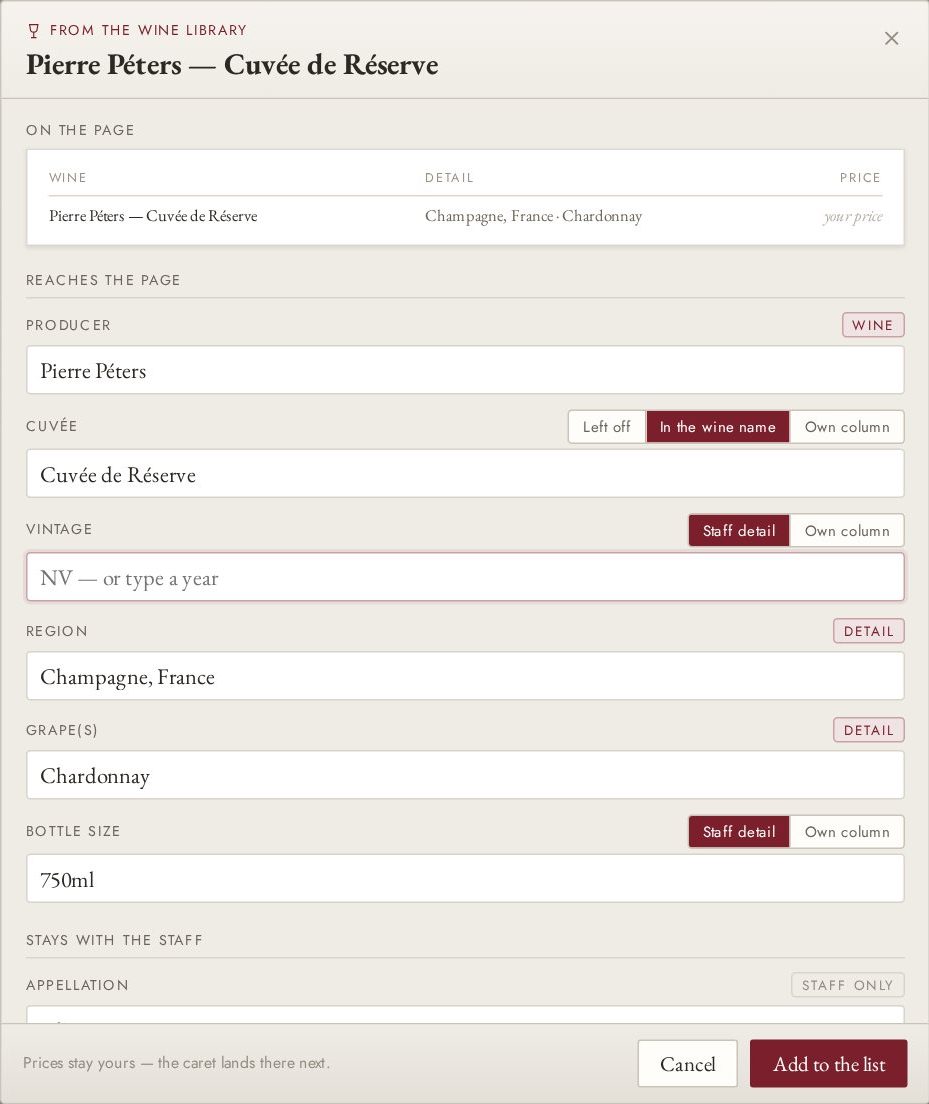
A wine from the Library opens with its details laid out: producer, cuvée, vintage, region, grapes and bottle size. Each one is marked for where it goes, on the page or kept for the staff only, and you can change any of them before it reaches the sheet.

Press Add to the list. The cursor lands in the price, because prices are always yours to set. Type it, and the wine is on the list and in that establishment's Inventory.

The From the Wine Library window for Pierre Péters Cuvée de Réserve: a preview of the row, then the producer, cuvée, vintage, region, grape and bottle size, with Add to the list at the bottom

4

Build the sections

Each section has its own buttons, so new things land where you are working.

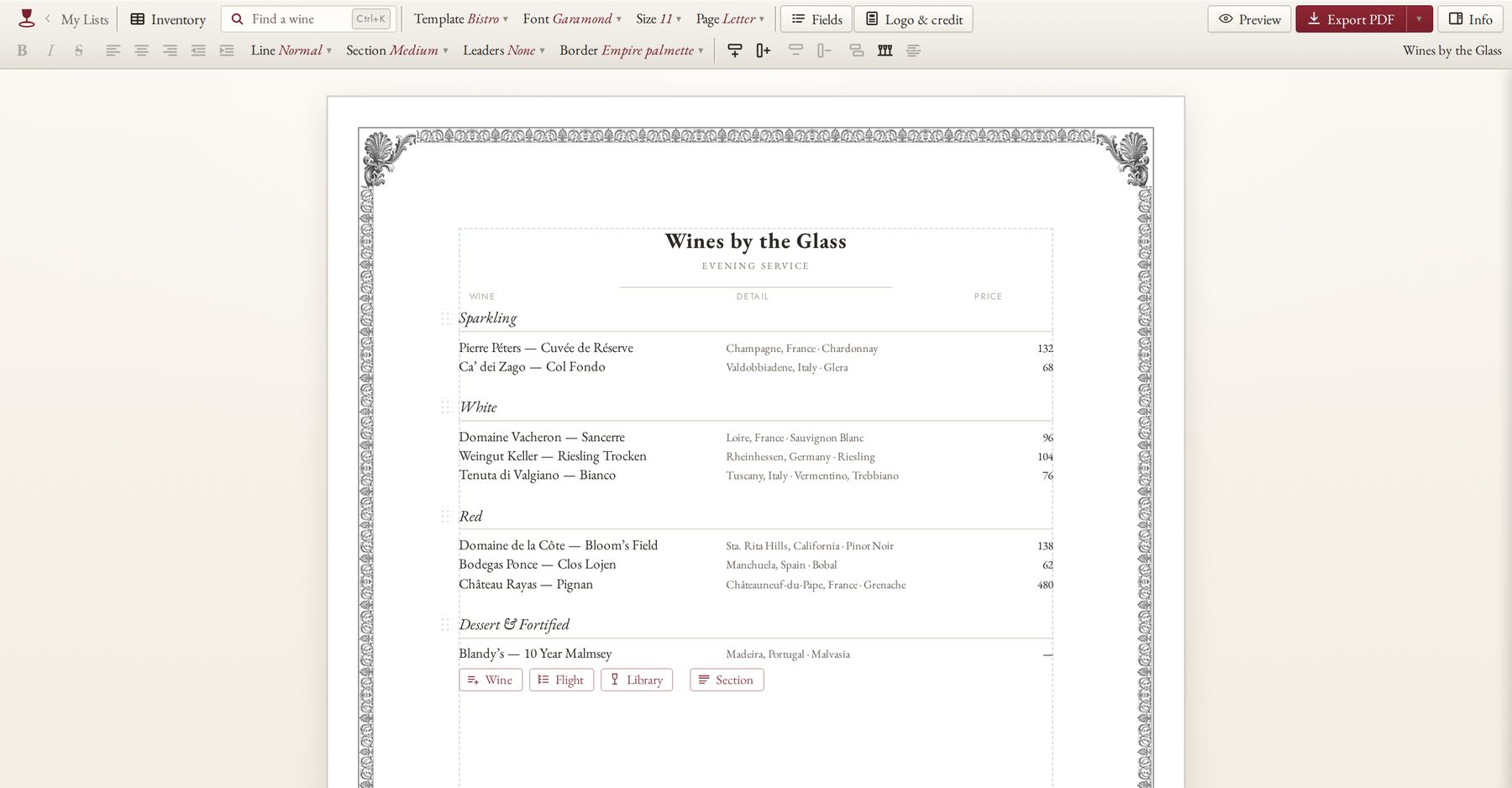
  • Wine adds a row; Flight groups wines under one set price; Library searches the Library for this section; Section starts a new heading below.
  • Click a heading to rename it. Delete, pressed twice, removes a heading; the first section can also go without one.
  • Drag a column edge to widen it, or drag a column to move it.
  • Out of a wine? Select it and press S on the toolbar to 86 it. It stays on the list, struck through, until you bring it back.
The desktop editor: a two-row toolbar above a white sheet, with Wine, Flight, Library and Section buttons under the last section

5

Give it the house look

The first row of the toolbar dresses the whole list at once.

  • Template, Font, Size, Page: the style, the typeface, the type size and the paper.
  • Fields: what prints on each wine, such as the vintage, the region or the grapes.
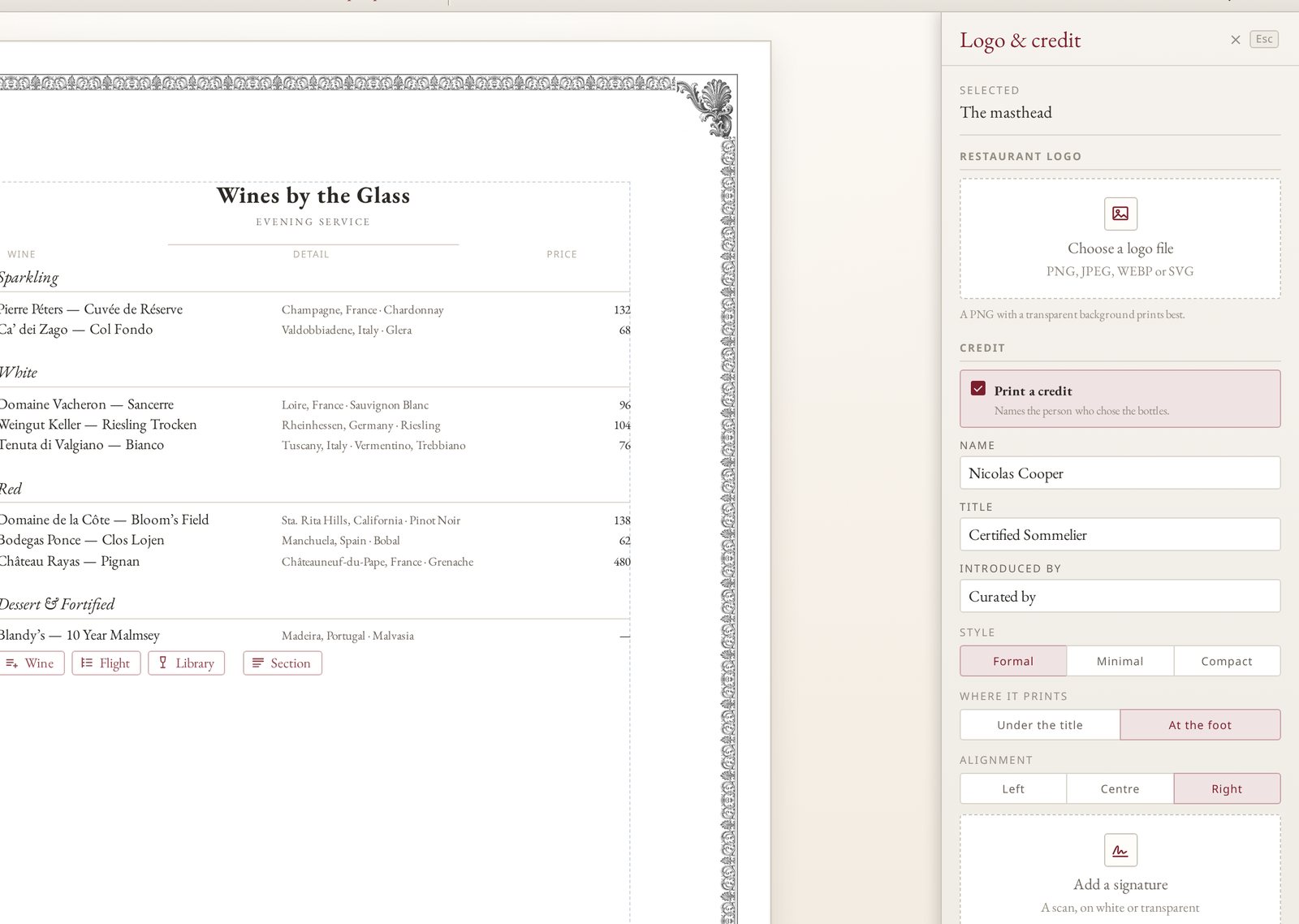
  • Logo & credit: the restaurant's logo, and the sommelier's name and title.
  • Border, on the second row: a frame, from a hairline rule to an engraved border.
The Logo and credit drawer beside a by-the-glass list, with the sommelier's name and title set to print at the foot

6

Preview, then print or export

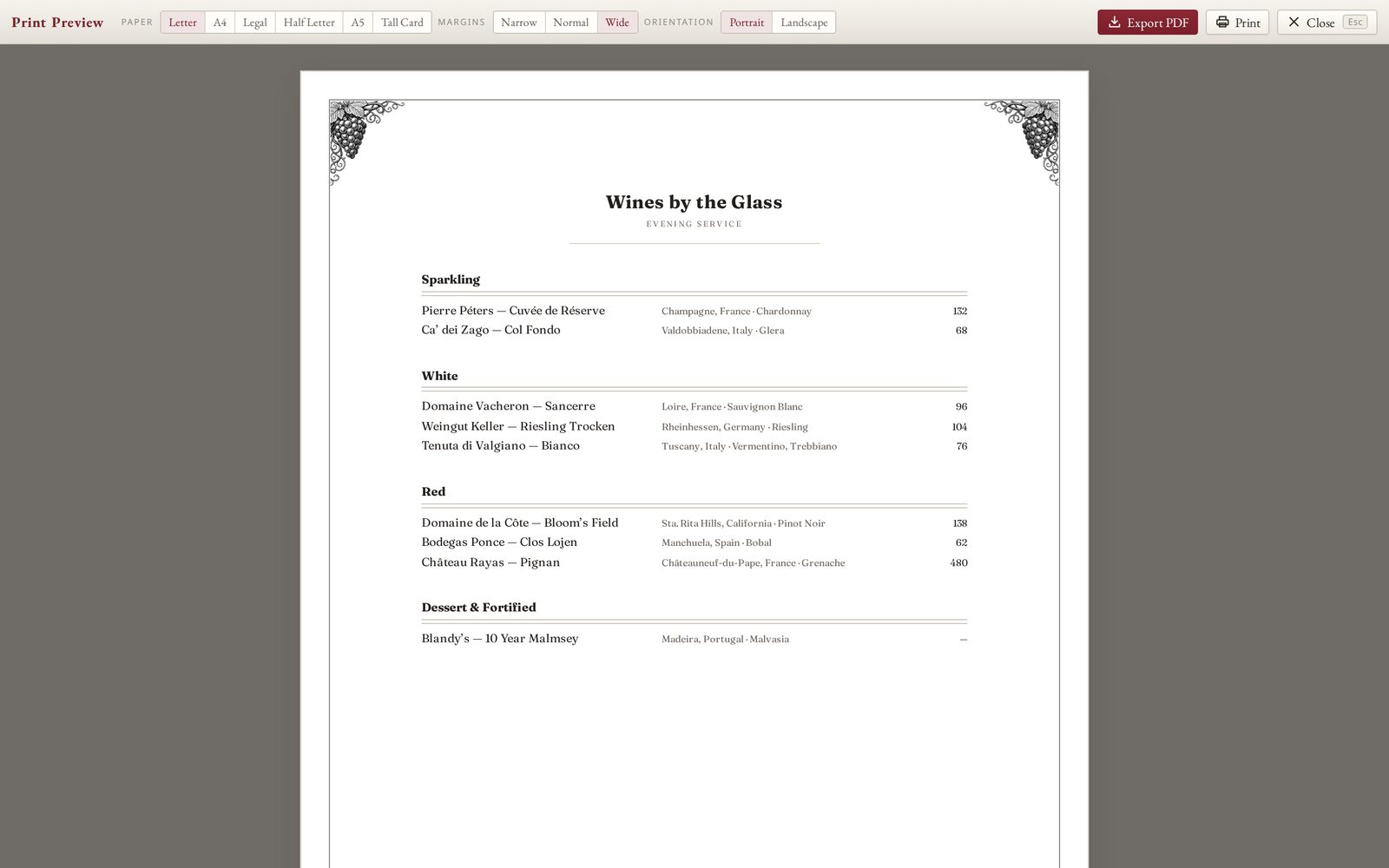
Press Preview to see the sheets exactly as they will print, with the paper, margins and orientation above them.

  • Export PDF makes a PDF with real, selectable text.
  • The small arrow beside it offers HTML for the web, a snippet to paste into your website. 86'd wines are left out of it.
  • Lists save as you type; the status bar at the bottom says Saved.
Print Preview, with paper, margin and orientation choices above the sheet, and Export PDF and Print buttons

Inventory

Count what you have, and the list knows.

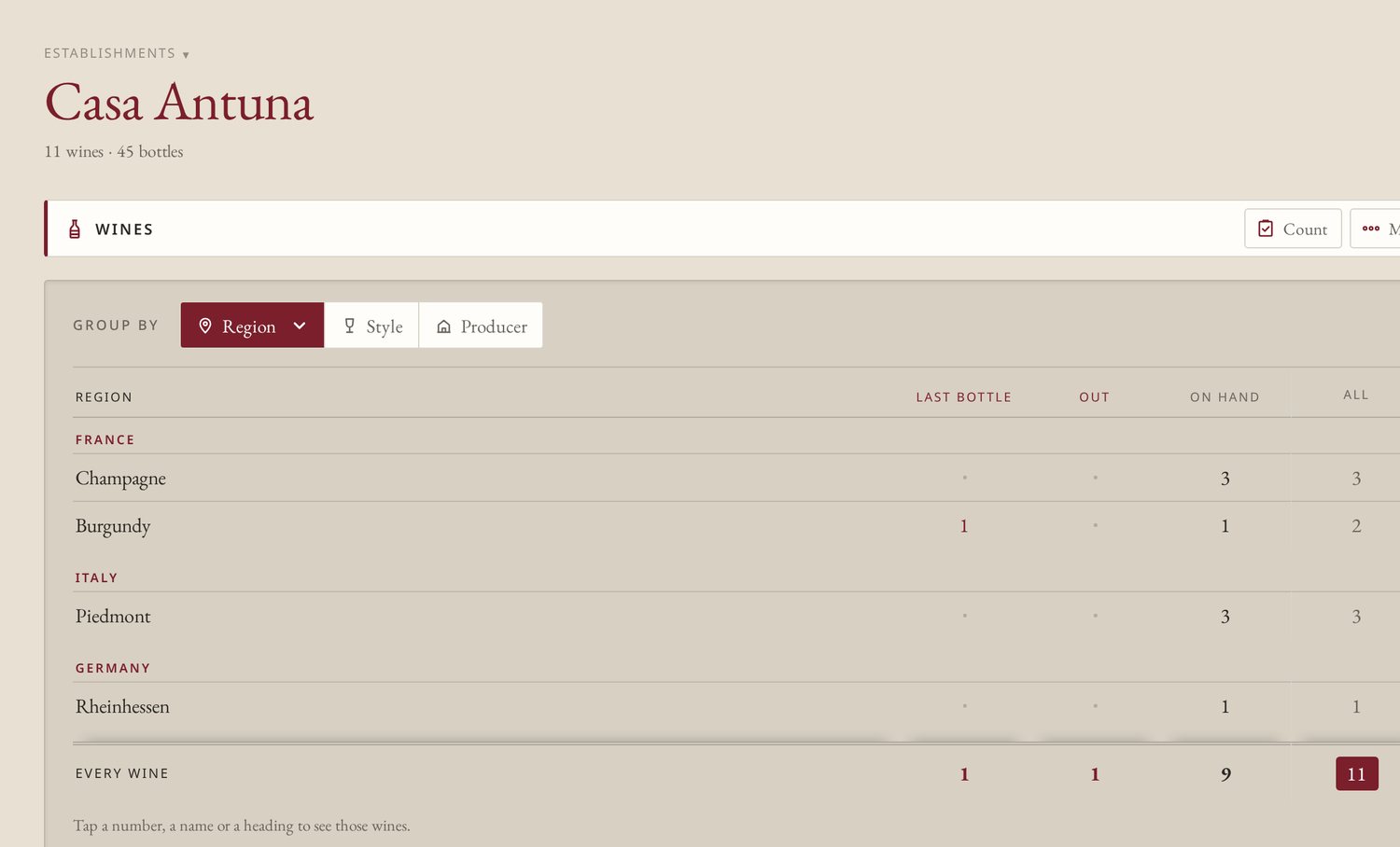
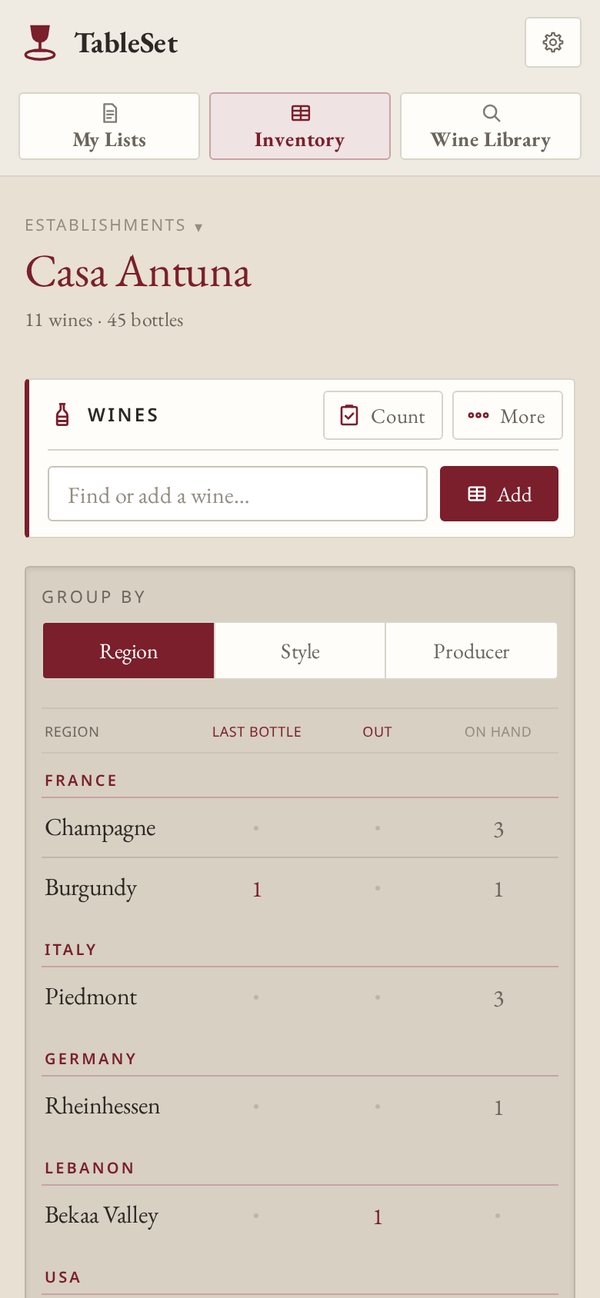
Every wine you put on a list is filed in that establishment's Inventory, grouped by country and region. Already have bottles? You can start here instead, and build the list from Inventory later.

Inventory for Casa Antuna: 11 wines and 45 bottles, grouped by country and region, with the last bottle, out and on hand counts for each
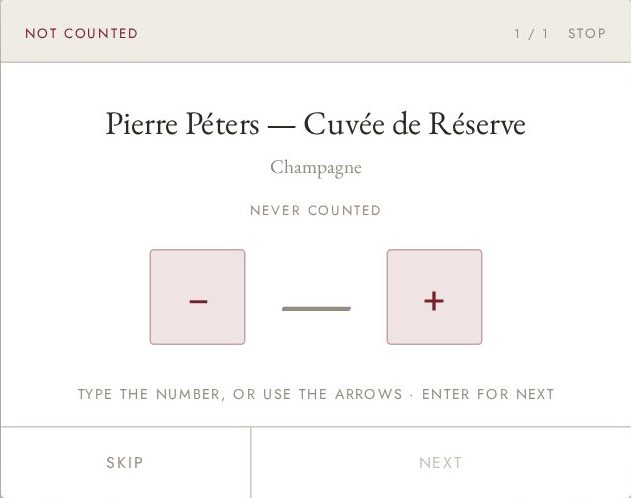
The count, one wine at a time: Pierre Péters Cuvée de Réserve, never counted, with large minus and plus buttons, and Skip and Next below
Count walks you through one wine at a time.

Tap to count

Use minus and plus beside a wine, or type the number in the box between them.

Count the shelf

Press Count to go wine by wine. Type a number or use the arrows; Enter moves to the next.

Low and sold out

Back in the editor, wines that are running low or counted to zero are marked in the margin.

On paper

More, then Print a count sheet, gives a ruled sheet for a pen, with no prices. More also downloads a CSV.

The Wine Library

Search first, when you know what you want.

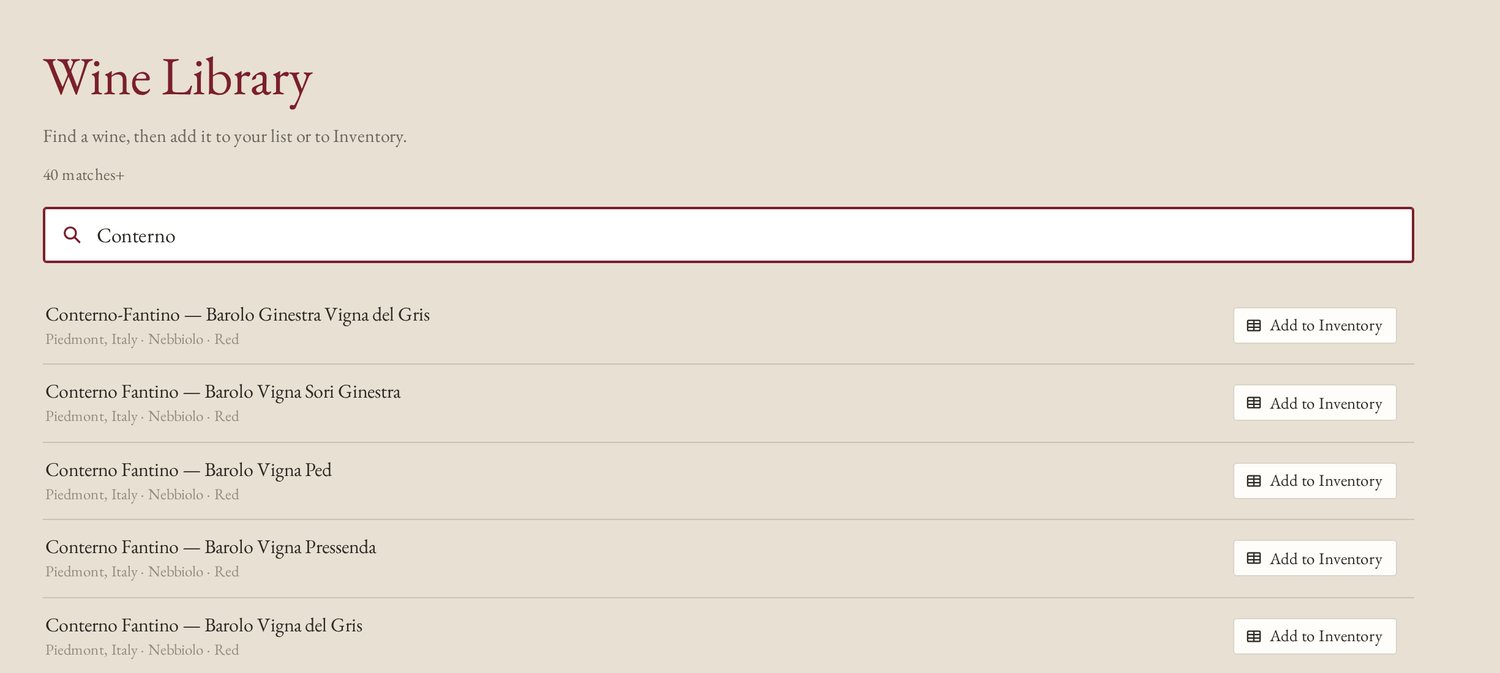
Open the Wine Library tab and type a producer, a wine or a place. Each match has two buttons.

  • Add to Inventory files the wine without putting it on a list.
  • Add to a section, when you opened the Library from a list; it turns to Added once it is there.
  • From the editor, Find a wine on the toolbar, or Ctrl+K, opens the Library without leaving your list.
The Wine Library, with search results and Add buttons beside each wine

On a phone

The same list, sized for one hand.

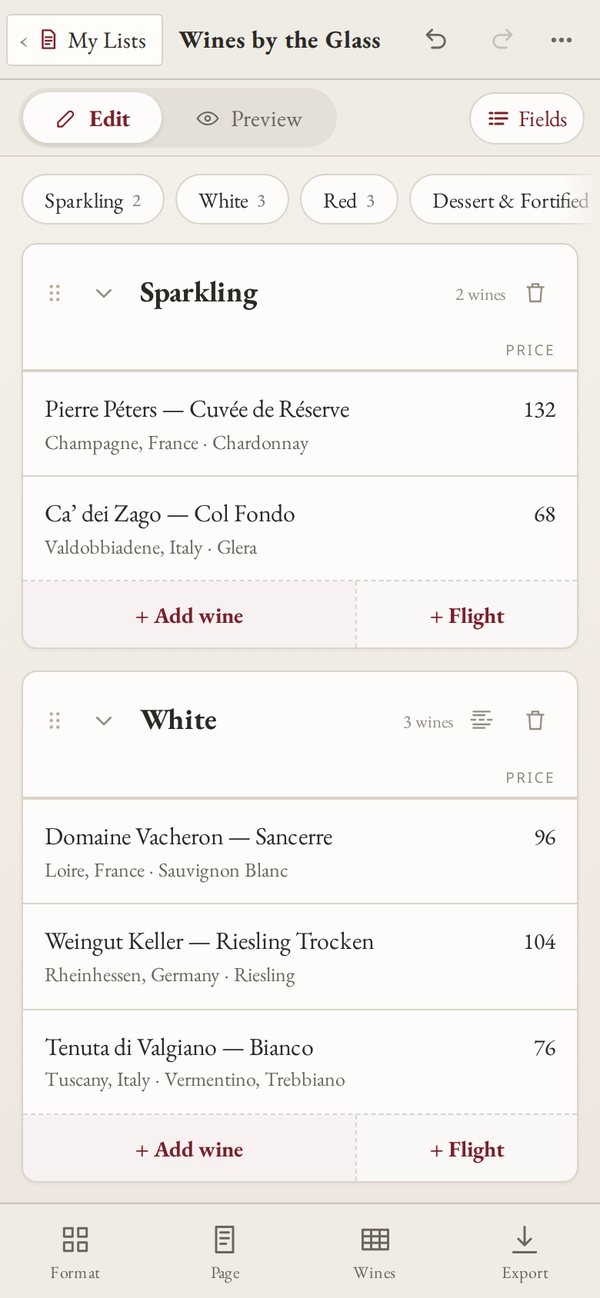
Open tableset.wine on a phone and the editor becomes a stack of cards, one for each section.

  • Tap a wine to edit it, and tap a title to rename it.
  • Hold the grip on a card and drag to reorder sections.
  • Inventory counts with your thumb, using the same minus and plus.
  • The full page is laid out underneath, so the PDF from a phone matches the one from a desk.
The phone editor, with sections as cards Inventory on a phone, grouped by region

Settings

A few choices, and a backup you keep.

Press the gear to open Settings.

  • Account: sign in to keep your lists in your account and open them on any device.
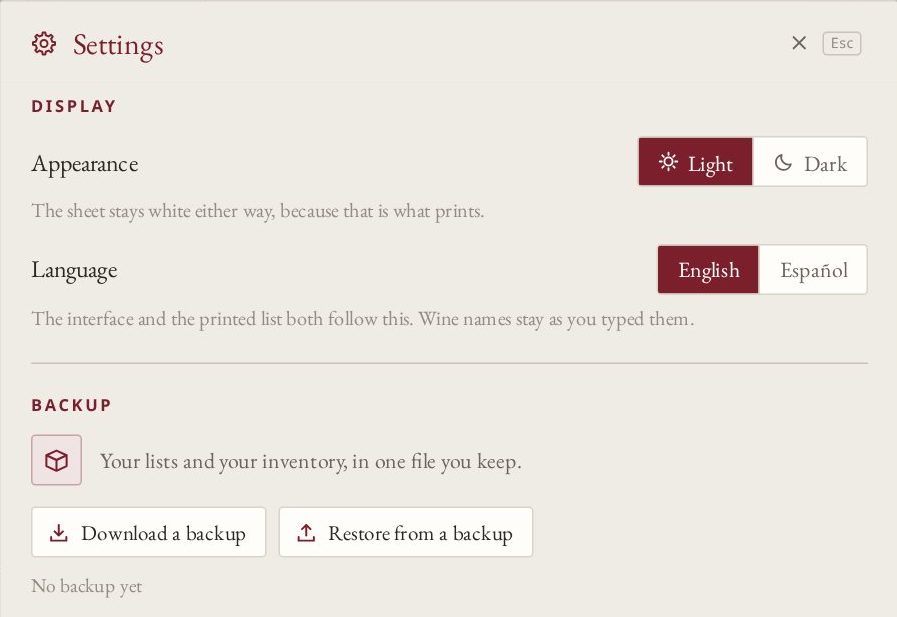
  • Appearance: Light or Dark. The sheet stays white either way, because that is what prints.
  • Language: English or Español, for the interface and the printed list. Wine names stay as you typed them.
  • Backup: download your lists and Inventory in one file, and restore it on another device.
  • Open a sample list: a finished list by the glass, to practice on.
Settings: Appearance set to Light, Language set to English, and the Backup section with Download a backup and Restore from a backup

Every feature

Everything, in one place.

A reference for later. Each line names the button you will see in TableSet.

Lists

  • By the Glass, Full List or Linked Pair
  • More than one establishment, each with its own lists
  • Sections, flights with a set price, and page breaks
  • Indent, Line, Section and Leaders on the toolbar
  • Insert and delete rows and columns; Duplicate row
  • Undo and redo, up to 60 steps back

The look

  • Twenty templates, each a complete house style
  • Fifteen borders, from a hairline rule to engraved frames
  • Font, Size and Page: Letter, A4, Legal, Half Letter, A5 and Tall Card
  • Fields: choose what prints on each wine
  • Logo & credit: the house logo and the sommelier's name
  • Info: the details of the wine you are on

Print and share

  • Preview, exactly as it prints
  • Export PDF, with real text
  • HTML for the web, without 86'd wines
  • A count sheet for each establishment
  • A CSV of every wine, with prices and counts

Inventory and Library

  • Inventory by country and region, for each establishment
  • Minus and plus, or Count one wine at a time
  • Low and sold-out marks in the editor
  • From a wine, see every list it is on
  • The Wine Library: more than 33,000 wines
  • Add to Inventory, or Add to a section

Keyboard shortcuts

On a Mac, use Cmd in place of Ctrl.

Ctrl K
Find a wine in the Wine Library
Ctrl Z
Undo
Ctrl Shift Z
Redo
Ctrl D
Duplicate the row
Ctrl Shift X
86 a wine, or bring it back
Ctrl Shift F
Insert a flight here
Ctrl [ ]
Indent less or more
Esc
Close a window, or keep what you typed

Ready

Try it on the sample list first.

Open TableSet, press the gear, and choose Open a sample list. It is a finished list by the glass, on your shelf like any other; change anything you like, then delete it from My Lists when you are done.